FluentCase Knowledge Base

Printable Knowledge Base Manual

This single-page manual groups the current published knowledge-base articles by taxonomy category. Embedded YouTube videos are replaced here with links so the manual stays print-friendly.

Generated from the current site build on 2026-03-15 23:18 UTC.

Getting Started

Quick Start Guide

Original article: /knowledge-base/getting-started/quick-start-guide.html

First Login

  1. Navigate to https://app.fluentcase.com
  2. Enter your email address
  3. Choose your login method:
    • Magic Login Link (recommended) - Click "Email Magic Login Link" to receive a secure login link via email
    • Password - Click "Use password instead?" to log in with your password
  4. If you don't have an account yet, contact your firm administrator

Understanding the Dashboard

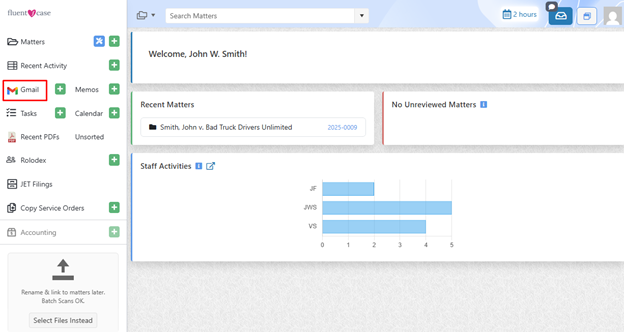
When you first log in, you'll see the FluentCase dashboard with several key sections:

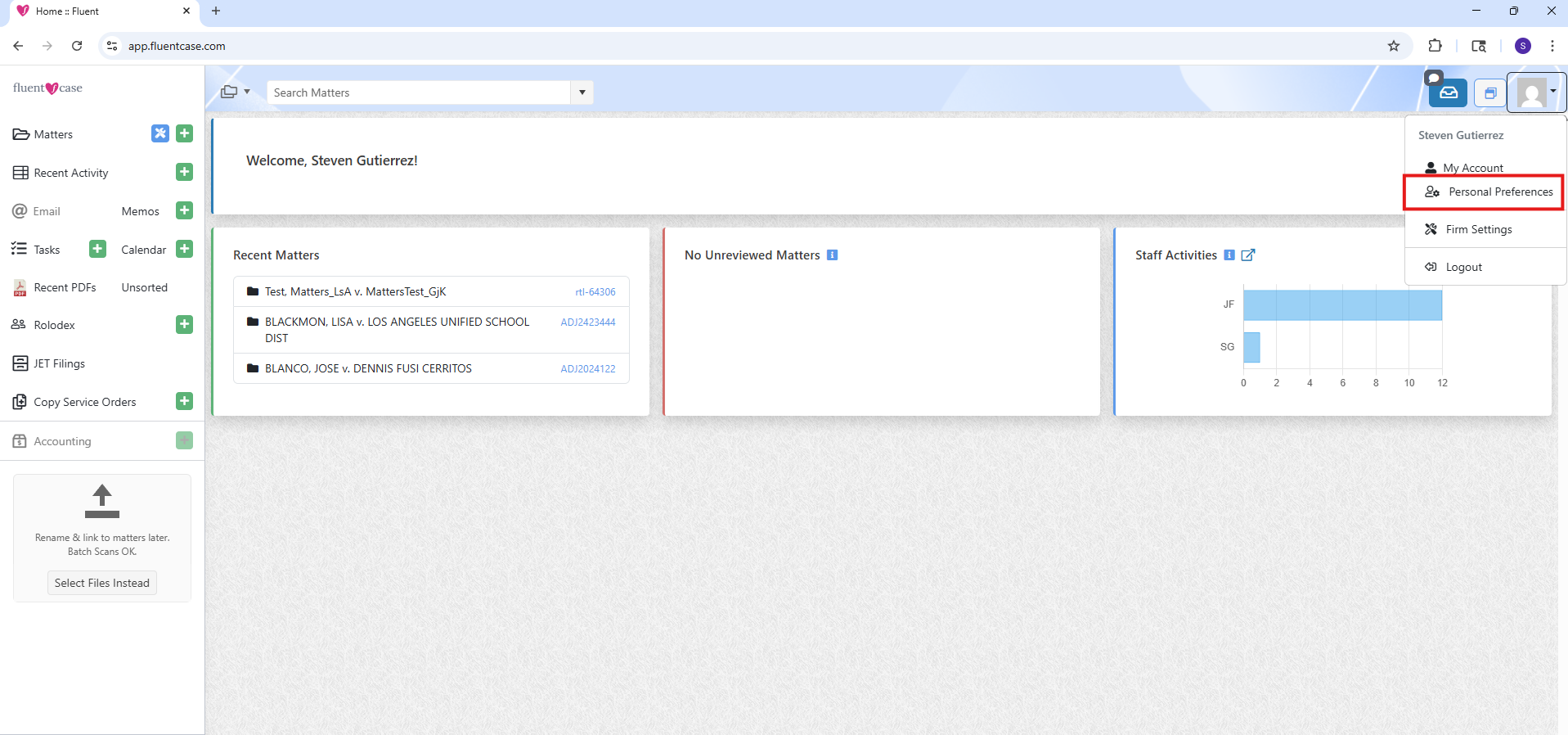
Navigation Menu
The left sidebar provides access to all major features:

  • Matters - View and manage all your cases
  • Activities - Track all matter-related activities
  • Messages - Email integration with Gmail/Outlook
  • Documents - Document management and storage
  • Calendar - Events, deadlines, and appointments
  • Tasks - Task management and tracking
  • Rolodex - Contact database
  • Memos - Internal memos and notes
  • Copy Service - Copy service order management
  • JET Filings - JET filing management

Dashboard Notifications & Widgets

Your dashboard displays:

  • Recent Matters - Matters you've accessed recently
  • Unreviewed Matters - Matters awaiting review
  • Staff Activities - Activity feed across your firm's staff

Notifications
Notifications are located in the upper right corner of the screen, next to the avatar silhouette. Click the notification icon to view and manage your alerts.

  • Incomplete Tasks - Notifications for tasks that are pending completion
  • Upcoming Events - Notifications for calendar events and deadlines
  • Unread Memos - Notifications for internal memos that haven't been read
  • Unread Emails - Notifications for emails awaiting your attention

Creating Your First Matter

  1. Click Matters in the left sidebar
  2. Click the adjacent to Matters in the left navigation panel
  3. Select the matter type (Workers' Compensation, Personal Injury, Employment, etc.)
  4. Fill in the required fields:
    • Matter name/title
    • Client information
  5. Click Save

For detailed instructions, see Creating and Managing Matters.

Uploading Your First Document

Note: This feature is located under the Accounting title in the Navigation Menu, then under the Copy Service Orders title within a matter.

  1. Navigate to a matter by clicking Matters in the left sidebar and selecting the relevant matter
  2. You can drag and drop a file directly into the matter or click Select Files to browse and choose files from your device to complete the upload process

For more information, see Uploading Documents.

Setting Up Email Integration

FluentCase integrates with Gmail and Outlook to manage your email directly within the application.

Gmail Setup

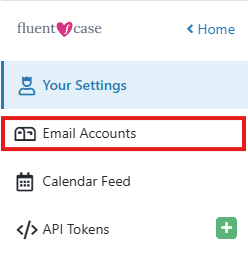
  1. Click on your avatar silhouette (top-right corner) and select Personal Preferences
  2. Select Email Accounts
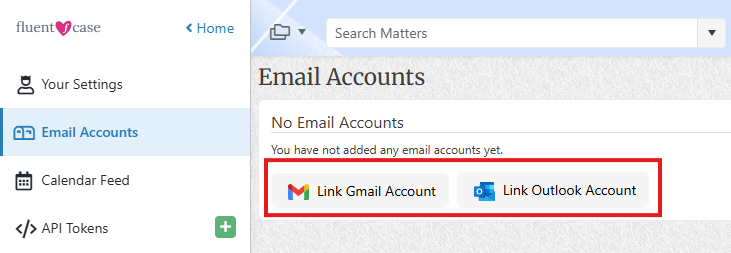
  3. Click Link Gmail Account
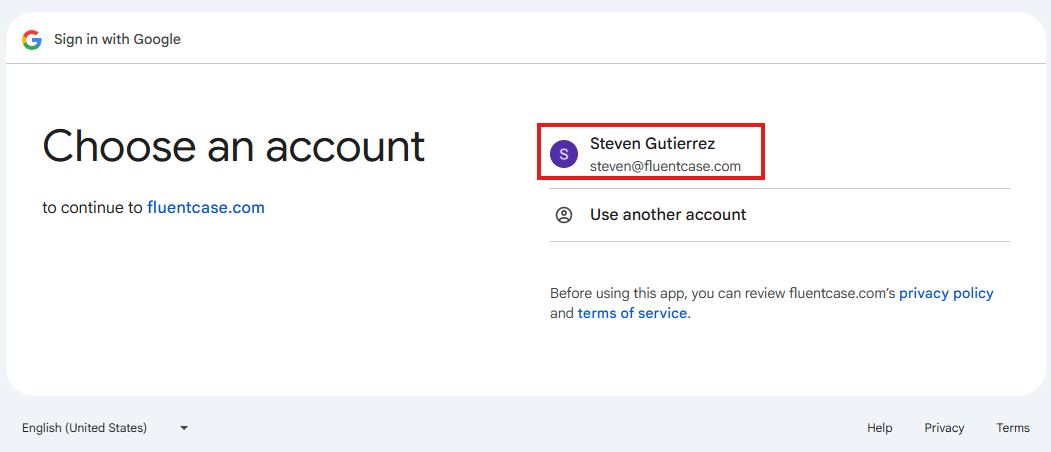
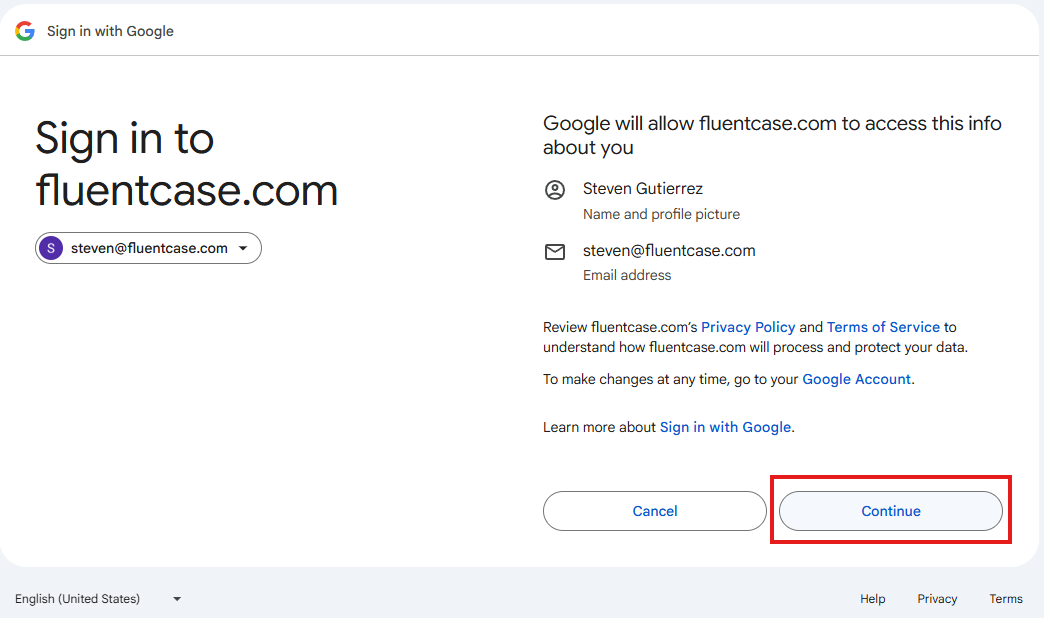
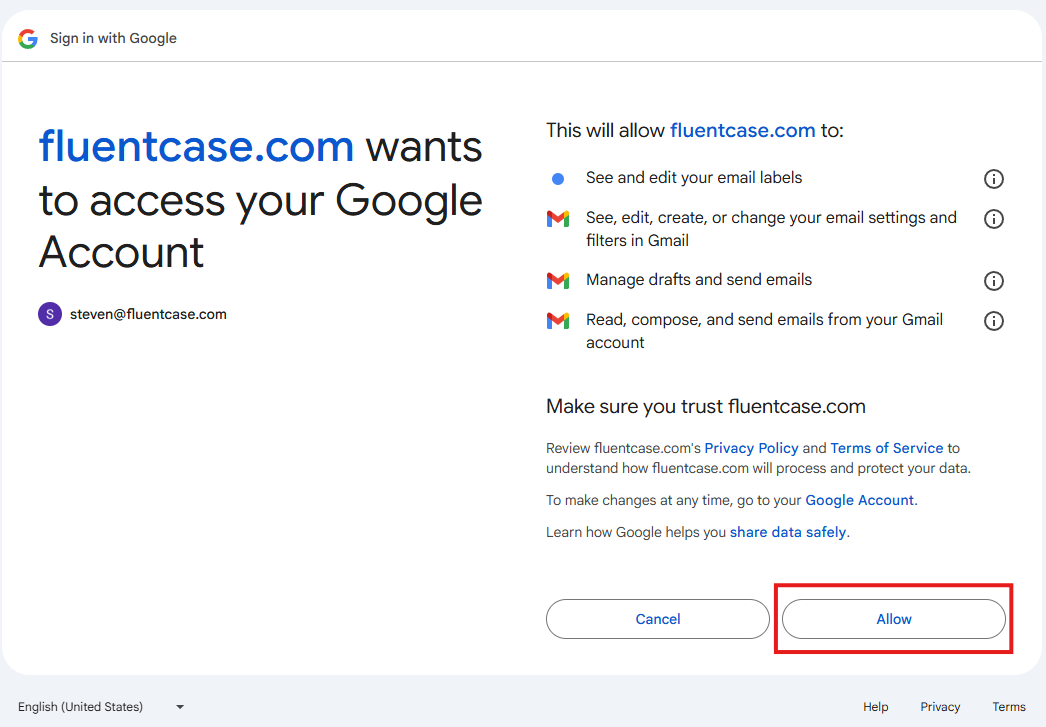
  4. Authorize FluentCase to access your Gmail
  5. Your emails will begin syncing automatically

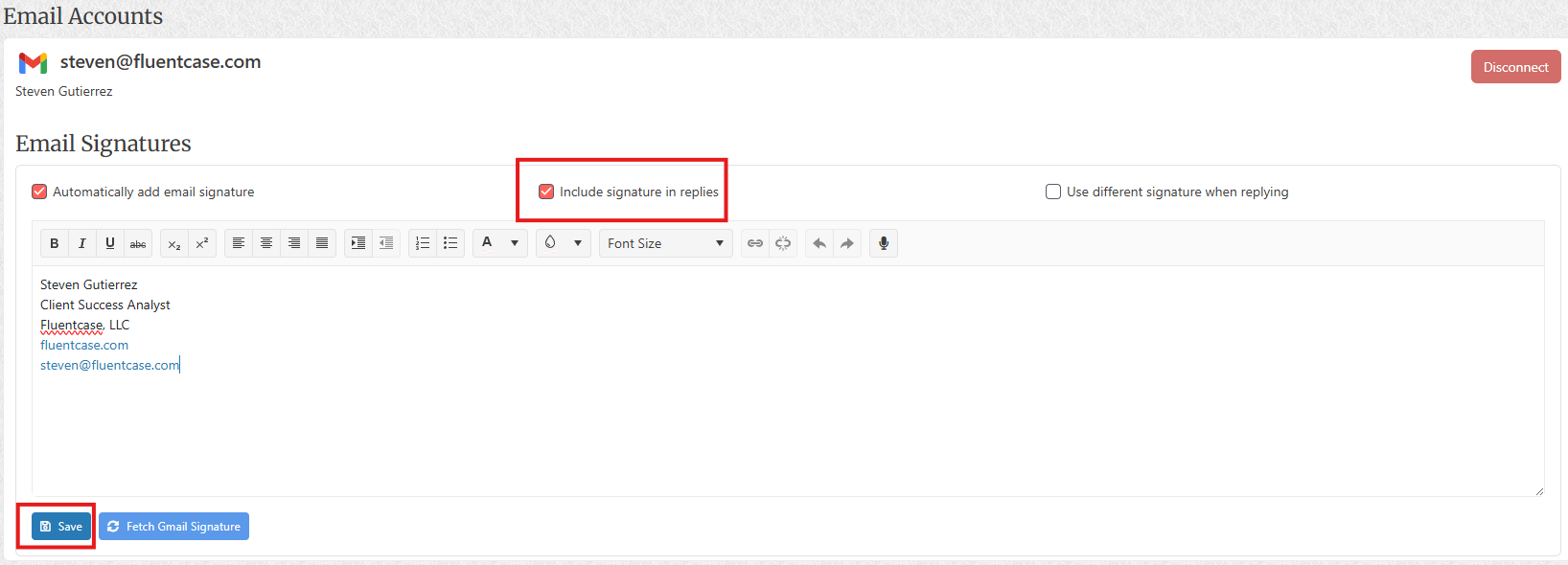
Tip: You can create your email signature directly on this same Email Accounts setup page. You can also return to Personal Preferences then Email Accounts at any time to update your signature.

See Gmail Integration for detailed instructions.

Outlook Setup

  1. Click on your avatar silhouette (top-right corner) and select Personal Preferences
  2. Select Email Accounts
  3. Click Link Outlook Account
  4. Authorize FluentCase to access your Outlook
  5. Your emails will begin syncing automatically

Tip: You can create your email signature directly on this same Email Accounts setup page. You can also return to Personal Preferences then Email Accounts at any time to update your signature.

See Configuring Outlook Sync for detailed instructions.

Setting Up Calendar Sync

Sync your FluentCase calendar with your device's calendar app:

  1. Click on your avatar silhouette (top-right corner) and select Personal Preferences
  2. Select Calendar Feed
  3. Click the Disabled button to enable calendar sync
  4. Copy your personal calendar URL
  5. Add the URL to your calendar application (Apple Calendar, Google Calendar, Outlook Calendar, etc.)

Tip: This synchronization is a one-way push of FluentCase calendar data to your preferred calendar application. Any changes to your firm calendar must be made directly within FluentCase — no updates to the firm calendar take place outside of FluentCase.

See Calendar Sync Setup for platform-specific instructions.

Creating Your First Task

  1. Open a matter or go to the Tasks section
  2. Click adjacent to Tasks in the left navigation panel
  3. Enter task Description
  4. Set the Assignee and Due Date
  5. Click Save

Adding Rolodex Entries

  1. Click Rolodex in the left sidebar
  2. Click adjacent to Rolodex entries in the left navigation panel
  3. Enter contact information:
    • Name
    • People Type (Client, Attorney, Insurance Adjuster, etc.)
    • Phone
    • Email
    • Physical Address
  4. Click Save

Next Steps

Now that you're familiar with the basics:

  1. Customize your preferences - Go to Settings to configure your personal preferences
  2. Import existing data - Contact support if you need to migrate data from another system
  3. Set up automations - Create automated workflows to save time
  4. Explore advanced features - Learn about Copy Service, JET Filings, and more
  5. Understanding User Roles - Learn about user roles and permissions in the Firm Settings section. See User Roles and Permissions for details.

Getting Help

Tips for Success

  • Use tags - Tag activities and documents for easy organization
  • Set up automations - Automate repetitive tasks
  • Sync your calendar - Keep all your deadlines in one place
  • Use batch scanning - Upload multiple documents at once

Initial Setup Guide

Original article: /knowledge-base/getting-started/initial-setup.html

This guide will walk you through the initial setup process for FluentCase, ensuring you’re ready to start managing your legal practice efficiently.

Step 1: Account Activation

  1. Check your email for the FluentCase welcome message
  2. Click the activation link in the email
  3. Optionally set your password (or use Magic Login Link for passwordless access)
  4. Log in to https://app.fluentcase.com using either:
    • Magic Login Link - Enter your email and click “Email Magic Login Link” to receive a secure login link
    • Password - Enter your email, click “Use password instead?”, and enter your password

Step 2: Complete Your User Profile

  1. Click your name in the top-right corner
  2. Select Settings → Profile
  3. Fill in your information:
    • Display Name - How your name appears to other users
    • First Name, Middle Name, Last Name
    • Salutation (Mr., Ms., Dr., etc.)
    • Suffix (Jr., Sr., Esq., etc.)
    • Job Title
    • Initials - Used in document templates
    • Email Signature - Appears in outgoing emails
  4. Upload a profile photo (optional but recommended)
  5. Click Save

Step 3: Configure Email Integration

Email integration is essential for managing communications within FluentCase.

Option A: Gmail Integration

  1. Go to Settings → Email Accounts
  2. Click Connect Gmail Account
  3. Sign in with your Google account
  4. Click Allow to grant FluentCase access to:
    • Read, compose, and send emails
    • Manage labels
    • Access email settings
  5. Wait for initial sync to complete (may take a few minutes)

Troubleshooting: If you see an error, ensure:

  • Your organization allows third-party apps
  • Pop-ups are allowed for app.fluentcase.com

See Gmail Integration for detailed instructions.

Option B: Configuring Outlook Sync

  1. Go to Settings → Email Accounts
  2. Click Connect Outlook Account
  3. Sign in with your Microsoft account
  4. Click Accept to grant FluentCase access
  5. Wait for initial sync to complete

See Configuring Outlook Sync for detailed instructions.

Step 4: Set Up Calendar Sync

Sync your FluentCase calendar with your preferred calendar application:

  1. Go to Settings → Calendar
  2. Copy your personal calendar URL
  3. Add to your calendar app:

Apple Calendar (macOS/iOS):

  • Open Calendar app
  • File → New Calendar Subscription
  • Paste the URL
  • Set refresh frequency to “Every 15 minutes”

Google Calendar:

  • Open Google Calendar
  • Click the + next to “Other calendars”
  • Select “From URL”
  • Paste the URL

Microsoft Outlook:

  • Open Outlook
  • File → Account Settings → Internet Calendars
  • Click “New”
  • Paste the URL

See Calendar Sync Setup for more details.

Step 5: Configure User Preferences

Customize FluentCase to match your workflow:

  1. Go to Settings → Preferences
  2. Configure the following:

Display Preferences

  • Theme - Light or dark mode
  • Date Format - MM/DD/YYYY or DD/MM/YYYY
  • Time Format - 12-hour or 24-hour
  • Timezone - Your local timezone

Notification Preferences

  • Email Notifications - When to receive email alerts
  • Desktop Notifications - Browser notifications for important events
  • Notification Frequency - Immediate, daily digest, or weekly digest

Default Settings

  • Default Matter View - How matters are displayed
  • Documents Per Page - Number of documents to show
  • Calendar Default View - Day, week, or month

Step 6: Set Up Cloud Storage (Optional)

Connect Dropbox or Google Drive for optional backup integration:

Dropbox

  1. Go to Settings → Cloud Storage
  2. Click Connect Dropbox
  3. Sign in to Dropbox
  4. Click Allow to grant access
  5. Select folders to sync (optional)

Google Drive

  1. Go to Settings → Cloud Storage
  2. Click Connect Google Drive
  3. Sign in to your Google account
  4. Click Allow to grant access
  5. Select folders to sync (optional)

See Dropbox Integration and Google Drive Integration for more information.

Step 7: Import Existing Data (If Applicable)

If you’re migrating from another system:

  1. Provide information about your current system
  2. Our team will assist with data migration

Supported Import Sources:

  • Merus (automated import available)
  • CSV files (contacts, matters)
  • Email archives (PST, MBOX)
  • Document folders

Step 8: Learn the Interface

Take a few minutes to familiarize yourself with the FluentCase interface:

  • Left Sidebar - Main navigation menu
  • Top Bar - Search, notifications, user menu
  • Right Panel - Context-specific details and actions

Step 9: Create Your First Matter

Now you’re ready to create your first matter:

  1. Click Matters in the left sidebar
  2. Click + New Matter
  3. Select matter type
  4. Fill in required fields
  5. Click Save

See Creating and Managing Matters for detailed instructions.

Step 10: Invite Team Members (Firm Admins Only)

If you’re a firm administrator, invite your team:

  1. Go to Settings → Users
  2. Click + Invite User
  3. Enter email address
  4. Select user role
  5. Click Send Invitation

See Managing Firm Users for more information.

Next Steps

You’re all set! Here are some recommended next steps:

  • Upload documents - Start building your document library
  • Create tasks - Set up your task management workflow
  • Set up automations - Automate repetitive tasks
  • Explore advanced features - Copy Service, Court Filings, etc.

Getting Help

System Requirements

Original article: /knowledge-base/getting-started/system-requirements.html

FluentCase is a cloud-based web application that works on most modern devices and browsers.

Supported Web Browsers

FluentCase works with any modern web browser, including:

  • Google Chrome (recommended)
  • Microsoft Edge (Chromium-based)
  • Mozilla Firefox
  • Apple Safari
  • Other WebKit-based browsers

Browser Requirements

  • JavaScript must be enabled
  • Cookies must be enabled
  • Pop-up blocker should allow pop-ups from app.fluentcase.com
  • Local Storage must be enabled

Operating Systems

Desktop/Laptop

  • Windows - Windows 10 or later
  • macOS - macOS 10.15 (Catalina) or later
  • Linux - Modern distributions with up-to-date browsers

Mobile Devices

  • iOS - iOS 14 or later (iPad and iPhone)
  • Android - Android 9 or later

Note: While FluentCase is accessible on mobile devices, the full desktop experience is recommended for optimal productivity.

Internet Connection

A stable internet connection is required. A faster connection is recommended for:

  • Uploading large documents
  • Real-time collaboration

Email Integration Requirements

Gmail Integration

  • Google Account with Gmail enabled
  • OAuth 2.0 authentication support

Outlook Integration

  • Microsoft 365 account or Outlook.com account
  • OAuth 2.0 authentication support

Calendar Sync Requirements

To sync your FluentCase calendar with external calendar applications:

  • iCalendar (iCal) support in your calendar application
  • HTTPS access to calendar feed URLs
  • Automatic refresh capability (recommended)

Supported calendar applications:

  • Apple Calendar (macOS, iOS)
  • Google Calendar
  • Microsoft Outlook
  • Mozilla Thunderbird
  • Any iCal-compatible calendar app

Document Management Requirements

Supported Document Formats

Upload and Storage:

  • PDF (.pdf)
  • Microsoft Word (.doc, .docx)
  • Microsoft Excel (.xls, .xlsx)
  • Images (.jpg, .jpeg, .png, .gif, .tiff, .bmp)
  • Text files (.txt)
  • Rich Text Format (.rtf)

OCR Processing:

All documents added to FluentCase automatically receive OCR (Optical Character Recognition) processing, making every document fully searchable and text-selectable — no manual steps required. This applies to:

  • PDF documents (automatically processed)
  • Image files (converted to searchable PDF)
  • Multi-page TIFF files

For more details, see OCR Processing.

File Size Limits

  • Maximum file size - 384 MB per file
  • Multiple file upload - Up to 20 files at once

Microsoft Word Integration

For document template features:

  • Microsoft Word - 2007 or later (any version supporting OOXML format)
  • Macros enabled - Required for template features
  • See Enable Word Macro Guide

Cloud Storage Integration

Dropbox

  • Dropbox account (any plan)
  • OAuth 2.0 authentication

Google Drive

  • Google account with Google Drive enabled
  • OAuth 2.0 authentication

Security Requirements

SSL/TLS

  • HTTPS - All connections use TLS 1.2 or higher
  • Certificate validation - Browser must validate SSL certificates

Firewall and Network

FluentCase requires access to:

  • app.fluentcase.com (HTTPS, port 443)
  • *.fluentcase.com (HTTPS, port 443)
  • Google APIs (for Gmail/Drive integration)
  • Microsoft Graph API (for Outlook integration)

Authentication

  • Passwordless login - Single-use token sent via email
  • Session timeout - Configurable (default: 8 hours)

Hardware Recommendations

FluentCase is a cloud-based application and will run on most modern computers. For optimal performance, ensure your device can run a modern web browser smoothly.

Scanning Equipment (Optional)

For document scanning, FluentCase accepts PDF files. How you create those PDFs is up to you, but here are some recommendations:

  • Scanner - Any scanner that can output PDF files
  • Multi-page feeder - Recommended for high-volume scanning
  • Resolution - 150-200 dpi recommended; do not exceed 200 dpi
  • Color/Grayscale - Both supported, but pure black-and-white is recommended for Batch Scanning

Accessibility

FluentCase provides accessibility features:

  • Screen readers - Compatible with JAWS, NVDA, VoiceOver
  • Presentation Options - High Contrast and Dark Mode themes available
  • Text scaling - Supports browser text zoom

Performance Optimization Tips

FluentCase works best with Google Chrome. We recommend keeping Chrome updated to the latest version to ensure you have the best possible experience and remain in good working condition with all FluentCase features. Learn how to update Google Chrome.

For the best experience:

  1. Use a modern browser - Keep your browser updated
  2. Clear cache regularly - Helps prevent performance issues
  3. Close unused tabs - Reduces memory usage
  4. Disable unnecessary extensions - Some extensions can interfere with FluentCase

Add FluentCase as an App on your Phone or Tablet

Original article: /knowledge-base/getting-started/add-fluentcase-as-an-app-on-your-phone-or-tablet

This guide explains how to add the FluentCase web application (https://app.fluentcase.com) to your home screen on supported mobile devices. Adding FluentCase as a home screen icon allows quicker access and a more app-like experience.

For iPhone and iPad (iOS/iPadOS)

Steps to Add FluentCase to Home Screen

  1. Open Safari on your iPhone or iPad.
    • This process works in Safari on iOS and iPadOS.
  2. Navigate to https://app.fluentcase.com.
  3. Tap the Share icon.
    • On iPhone, it is usually at the bottom of the screen.
    • On iPad, it is usually near the top-right corner.
  4. Scroll in the share menu and tap Add to Home Screen.
  5. Review or edit the app name.
  6. Tap Add.
  7. The FluentCase icon will appear on your home screen.

For Android Devices

Using Chrome

  1. Open Chrome on your Android device.
  2. Navigate to https://app.fluentcase.com.
  3. Tap the Menu icon (three dots).
  4. Select Add to Home screen or Install app.
  5. Review or edit the app name.
  6. Tap Add or Install to confirm.
  7. The FluentCase icon will appear on your home screen.

Using Samsung Internet

  1. Open Samsung Internet.
  2. Navigate to https://app.fluentcase.com.
  3. Tap the Menu icon.
  4. Select Add page to and then Home screen.
  5. Review or edit the app name.
  6. Tap Add.

Benefits of Adding FluentCase to Your Home Screen

  • Quick access - Launch FluentCase with a single tap
  • App-like experience - Open FluentCase without the usual browser chrome
  • Current information - Access the live web app directly

Troubleshooting

If you do not see the option to add FluentCase to your home screen:

  1. Make sure you are using a supported mobile browser for your device.
  2. Confirm you are on https://app.fluentcase.com.
  3. Refresh the page and try again.
  4. Update your browser if needed.

Add FluentCase Calendar to iPhone, Android, Outlook, or Google

Original article: /knowledge-base/calendars/add-fluentcase-calendar-to-iphone-android-outlook-google

Important Notes

  • iCalendar subscriptions are read-only; you cannot add or edit events in these calendars
  • Update frequency varies by platform; some update hourly, others daily
  • Some calendar apps may have limits on the number of subscribed calendars
  • Password-protected iCal feeds require you to include credentials in the URL or may not work on all platforms
  • Free calendar apps may have limited support for iCal subscriptions compared to paid versions
  • Timezone handling may vary across different calendar applications; verify that events display in your local timezone

FluentCase provides a per-user calendar “feed” for viewing your Fluent calendar across a wide variety of devices and calendar applications. This guide explains how to subscribe to the FluentCase iCalendar (iCal) feed on various calendar platforms. iCalendar feeds allow you to automatically receive updated events from FluentCase in your personal calendar.

Retrieving your unique calendar URL

Your personal FluentCase iCalendar URL is found in Personal Preferences. Access Personal Preferences from the menu in the upper right-hand corner. Then select “Calendars” from the main navigation menu on the left side of the screen.

Configuration options are limited, other than enabling the feature and resetting your URL. Be mindful about sharing this web address; anyone with the address can use it to subscribe to your calendar. If you feel your URL has been compromised, you can reset the URL, deactivating any previous versions, or turn the feature off altogether.

By default, calendar events two months in the past through six months in the future are included in the iCalendar feed.

Google Calendar

On Desktop:

  1. Open Google Calendar in your web browser
  2. In the left sidebar, find “Other calendars”
  3. Click the “+” button next to “Other calendars”
  4. Select “From URL” from the dropdown menu
  5. Paste your iCalendar URL in the “URL of calendar” field
  6. Click “Add calendar”
  7. The calendar will appear under “Other calendars” in your sidebar
  8. To change the name or color, hover over the calendar in the sidebar, click the three dots, and select “Settings”

On Mobile (Android/iOS):

  1. You must first add the calendar on desktop using the steps above
  2. Open the Google Calendar app on your mobile device
  3. The subscribed calendar will automatically sync to your mobile app
  4. To show/hide the calendar, tap the three lines (menu) in the top-left
  5. Check or uncheck the calendar name in the list

Note: Google Calendar typically updates iCal feeds every 8-24 hours, not instantly.

iPhone and iPad (iOS/iPadOS)

  1. Open the native Apple Calendar on Calendars. At the bottom of the screen, tap “Calendars”.

  2. Click on Add Calendar on the bottom left side of screen and select “Add Subscription Calendar”.

  3. Paste the FluentCase iCalendar URL tap “Subscribe”.

  4. A screen with Calendar title and events preview will be displayed. At this point, tap “Add” in the top right corner.

  5. You will now be able to see events assigned to you in your iPhone’s calendar.

    FluentCase Events in Apple Calendar List View Details on a Single FluentCase event

Microsoft Outlook

On Desktop (Outlook app):

  1. Open Outlook
  2. Click the Calendar icon to switch to calendar view
  3. Right-click on Calendars in the navigation pane
  4. Select Add Calendar > From Internet
  5. Paste the iCalendar URL in the dialog box
  6. Click OK
  7. Enter a name for the calendar and click OK

On Outlook (Web):

  1. Go to outlook and sign in
  2. Click the calendar icon in the bottom-left corner
  3. In the left sidebar, click Add calendar
  4. Select Subscribe from web
  5. Paste the iCalendar URL in the field
  6. Give the calendar a name and choose a color
  7. Click Import

On Mobile (Outlook app):

  1. You must first add the calendar on desktop or web using the steps above
  2. Open the Outlook app on your mobile device
  3. Tap the Calendar icon
  4. The subscribed calendar will appear in your calendar list
  5. To show/hide, tap the calendar menu (three lines or calendar icon) and toggle the calendar on/off

Android (Samsung Calendar, etc.)

For Samsung Calendar:

  1. Open the Calendar app
  2. Tap the Menu icon (three lines) or More (three dots)
  3. Tap Manage calendars or Settings
  4. Tap Add account or Add calendar
  5. Select Subscription calendar
  6. Enter the iCalendar URL
  7. Name your calendar and tap Done or Add

For Other Android Calendar Apps:

Most Android calendar apps don’t directly support iCal subscriptions. Instead:

  1. Add the iCal feed to Google Calendar using the desktop instructions above
  2. Ensure your Android calendar app is syncing with your Google account
  3. The subscribed calendar will appear in your app through Google Calendar synchronization

Troubleshooting

Calendar Not Updating

  • Google Calendar: Updates every 8-24 hours; manually refresh by removing and re-adding
  • iOS Calendar: Go to Settings > Calendar > Accounts > Subscribed Calendars > [Your Calendar] > Auto-Refresh
  • Outlook: Right-click the calendar and select “Update” or “Sync”

Invalid URL Error

  • Ensure that the FluentCase calendar URL begins with https://app.fluentcase.com/calendar/, followed by a string of random alphanumeric characters.
  • Try copying and pasting the URL rather than typing it manually

Calendar Shows But No Events Appear

  • Check if the calendar contains future events (some apps don’t show past events)
  • Verify that the correct calendar is selected/visible in your app
  • Ensure you have internet connectivity for the app to download updates

References

Training Video Library

Original article: /knowledge-base/training-video-library.html

Welcome to the FluentCase Training Video Library. Here you’ll find comprehensive video tutorials covering all aspects of the FluentCase platform.

Getting Started Videos

Feature Training

Integration Videos

Administration Videos

Mobile Videos

Workers Compensation

EAMs Integration

The EAMs integration is designed to support your workers compensation cases with importing cases, creating new cases and filing documents with the many workers compensation appeals boards across California.

Workers Compensation Integrated Forms

Use our integrated forms that are commonly used in the workers compensation field taken straight from the WCAB forms website. Your matters data will merge into the integrated fields saving you data entry time and manual spelling errors.

JETFiling

Boost your workers compensation matter productivity by filing new applications for adjudication, requesting hearing dates, and filing unstructured forms without leaving your FluentCase instance. The jetfiling tool can be used by every one of your staff. All your filings will be recorded in matter activity for easy reference.

Copy Service Orders

Submit copy service subpoena orders directly from within FluentCase. Submit, Track, and Receive your copy service orders directly to the matter they relate to. Your records are returned as a PDF from your vendor of choice.

User Personalization

Custom Themes

Customize your user experience with a "light, dark, and high contrast" theme choice.

Matter Dashboard Personalization

Personalize the look and feel of how you view the matter dashboard. Move and resize the many panels on your dashboard to your desired experience.

Email Messaging Composition Shortcut

Keep email subject lines consistent by selecting what information from the matter is always in the subject line.

User Productivity Tools

Calendar Subscription

Integrate your Google or Outlook Calendars with your FluentCase account to stay connected to your firm and personal calendars. Subscribe to your iCal firm calendar and view it on your pc, mobile phone, or tablet.

Email Integration

Integrate your Google and Outlook email services with your FluentCase account to link outgoing and incoming emails with related matters. No more adding a "cc" email address to have a message linked to a matter.

Configuring Outlook Sync

Connect your Microsoft Outlook account with FluentCase to seamlessly manage your email, sync folders, and link emails to matters. Integrate your Outlook calendar and manage all your communications in one place.

Email/Task/Memo Internal Notifications

View your email, memo, and task notifications in your FluentCase user experience. Know when there is something new to review.

Task Management

Task Management

Keep your team on task and your matters progress moving towards settlement with task creation and automated task creation using the workflow creator.

Workflow Creator for Tasks/Events

Design your own workflow for when a new task or event is created and assigned to internal staff based on the tags that you use as triggering events. When a new file has been opened. Task the attorney responsible and legal assistant to review the matter or set appointments.

Mobile Device Friendly

Access FluentCase from your mobile device anytime. Review matter content, email documents, and collaborate with your team from the comfort of your phone.

Memo Messaging

Use the internal memo messaging tool to keep email collaboration to a minimum especially when the content is related to a matter. Internal Memos never leave the system.

Matter Management & Organization

Unreviewed Matter/Stale Matter Management

Keep your matters moving and teams up to date with the matters with notifying them which ones have gone stale or haven't been reviewed yet.

File Archive/Export

This tool will help you to select the files that you need to download in bulk for distribution or select all files in a matter for archiving and distribution.

Word Template Integration

Bring your very own forms and templates to life in FluentCase. Your letters can be customized to merge matter data directly into each template saving you data entry time and reducing manual spelling errors.

Multi-practice Matter Management

Bring all your law practice types to a single practice management system. Personal Injury, Employment, Workers Compensation, etc.

Printing Envelopes

Print mailing envelopes for the party member of your choice at the tip of your fingers.

Letterhead Integration

Bring your company letterhead into your firm account to be used in all your letters. Company letterhead data merging is a "set it and forget it feature".

Matter Merging

Merge matters together to clean up duplicates and keep your firm data hygiene clean and efficient.

Rolodex Deduplication Tool

Merge duplicate rolodex entries together to keep your data clean and organized.

Unlimited Matter Tag Creation

Take advantage of the activity tagging system and create the tags that best fit your practice needs. Click on the "Document" tag to view all the "Documents" in the activity log.

Related Matter Reference

Relate matters together and add activity content that is shared amongst the related matters. Log a call on each matter at the same time.

Document Management

Batch Scan Document Splitting

Create a batch of scanned documents that include our document separator sheet and upload that batch to FluentCase. Watching many documents become individual files for easy matter relating.

Image File Merging

Merge copies of your receipts, invoices, and other image file types together to create a single document to be shared.

Document Merging

Merge multiple documents together to create a single shareable file via email, cd, usb drive media types.

Matter Search Firm Wide

Matter search will help you find the matter you are looking for. Using as little as 3 characters to begin producing results.

Email Features

Email Switch Case Matter

This feature will allow you to switch an already linked email from one matter to another matter.

Email Send Later

This feature will allow you to schedule an outgoing email for sending at a later date and time.

Link Multiple Emails to a Matter

Link multiple emails to a matter for better organization and tracking of email communications.

Advanced Features

AI Enabled Document Processing

Leverage AI technology to automatically process and organize your documents.

Searching Task Comments

Search through task comments to find specific information and discussions related to your tasks.

Reports

Generate comprehensive reports to analyze your firm's operations and productivity.

Signature Feature

Add digital signatures to your documents and communications.

Vendor Integrations

LegalPal Integration

Connect your LegalPal account with FluentCase to share matter data with your mobile application.

DocuCents Integration

Connect your DocuCents account with FluentCase to easily access your mailing data to complete your letter mailing process.

Dropbox Data Backup

Backup your uploaded files to your personal Dropbox account for safekeeping.

Google Drive Data Backup

Backup your uploaded files to your personal Google Drive account for safe keeping.

Matters

Creating and Managing Matters

Original article: /knowledge-base/matters/creating-matters.html

Matters are the core of FluentCase. Each matter represents a case or client file and contains all related documents, messages, events, tasks, and contacts.

Creating a New Matter

Basic Steps

  1. Click Matters in the left sidebar
  2. Click the adjacent to Matters in the left navigation panel
  3. Select the matter type from the dropdown
  4. Fill in the required fields
  5. Click Save

Matter Types

FluentCase supports multiple practice areas:

  • Workers' Compensation - Work-related injury cases. You can also import an existing case directly by clicking the Import from EAMs green button.
  • Personal Injury - Auto accidents, slip and fall, etc.
  • Employment Law - Wrongful termination, discrimination, etc.

Each matter type has specialized fields relevant to that practice area.

Required Fields

Basic Required Fields

All matter types require:

  • Matter Name/Title - Descriptive name for the matter
  • Client - Primary client contact, either a combination of Applicant and Employer or Plaintiff and Defendant

Staff Assignments

Assigning Team Members

To assign team members to the matter, click the Edit button on the Staff dashboard widget and complete the following assignments:

  • Attorney Responsible - Primary attorney on the case
  • Attorney Handling - Attorney actively working the case
  • Paralegal Handling - Assigned paralegal
  • Secretary Handling - Assigned secretary
  • Senior Associate Handling - Senior associate (if applicable)
  • Hearing Representative - For WC cases
  • Other Attorney - Additional attorney
  • Other Staff - Additional staff member

Matter-Specific Fields

Workers’ Compensation Matters

See Workers’ Compensation Matters for detailed information on WC-specific fields including:

  • EAMS case number
  • Injury date and body parts
  • Employer and insurance information
  • Permanent & Stationary date
  • DWC integration

Personal Injury Matters

See Personal Injury Matters for PI-specific fields including:

  • Accident date and type
  • Liability information
  • Insurance policy limits
  • Medical treatment providers
  • Settlement information

Employment Law Matters

See Employment Law Matters for employment-specific fields including:

  • Employer information
  • Complaint type (discrimination, harassment, wrongful termination, etc.)
  • Termination type and date
  • EEOC/DFEH case numbers

Managing Existing Matters

Viewing Matter Details

  1. Click Matters in the left sidebar
  2. Click on a matter name to open it
  3. The matter view shows:
    • Overview - Matter details and summary
    • Activities - All activities related to the matter
    • Documents - All documents in the matter
    • Messages - Email correspondence
    • Events - Calendar events and deadlines
    • Tasks - Tasks assigned to the matter
    • Contacts - Parties and contacts
    • Notes - Internal notes and memos
    • Time Entries - Billable time tracking
    • Payments - Payment records

Editing Matter Information

Note: Editing matter details can only take place by clicking the Edit button in the Summary & Dates matter dashboard widget.

The Summary & Dates widget is located on the matter's Overview tab. It displays key matter information at a glance — including the matter name, client, assigned staff, case status, and important dates — and serves as the central place to keep that information up to date.

To edit matter details:

  1. Open the matter
  2. Go to the Overview tab if not already there
  3. Locate the Summary & Dates widget and click its Edit button
  4. Update the relevant fields (e.g., matter name, client, assigned attorney, open date, or other matter-specific fields)
  5. Click Save

Tip: Keep the matter's assigned staff, key dates, and client information current — these fields are used throughout FluentCase for reporting, filtering, and notifications.

Note: Some fields may be restricted based on your user role.

Switching Matter Status

Note: Changing a matter's status can only take place by clicking the Edit button in the Summary & Dates matter dashboard widget.

Keeping matter status current is important — it affects how matters appear in your matters list, filters, and reports. To change a matter's status:

  1. Open the matter
  2. Go to the Overview tab if not already there
  3. Locate the Summary & Dates widget and click its Edit button
  4. Change the Case Status field to the appropriate value
  5. If closing or archiving the matter, set the Date Closed field as well
  6. Click Save

Common status values:

  • Active - Currently active case; appears in the default matters list view
  • Pending - Awaiting action, such as a client response or court date
  • Closed - Case has concluded; set the Date Closed date when using this status
  • Archived - Hidden from the main matters list but still fully searchable; use this for long-term storage of completed cases
  • Referred Out - Case has been referred to another attorney

Tip: When closing a matter, always set the Date Closed field at the same time so your reports and date filters stay accurate.

Archiving Matters

Archiving is useful for cases that are fully resolved and no longer need day-to-day visibility, but that you want to retain for reference. Archived matters are hidden from the main matters list but remain fully searchable and accessible.

Note: Archiving a matter can only take place by clicking the Edit button in the Summary & Dates matter dashboard widget.

  1. Open the matter
  2. Go to the Overview tab if not already there
  3. Locate the Summary & Dates widget and click its Edit button
  4. Set Case Status to Archived
  5. Set the Date Closed field if you haven't already
  6. Click Save

Tip: Use Closed for cases that are recently finished and may still need follow-up. Use Archived for older, fully resolved matters you want to remove from your active list.

To view archived matters:

  1. Go to Matters
  2. Click the Show Archived filter

Deleting Matters

Warning: Deleting a matter is permanent and cannot be undone.

Only users with appropriate permissions can delete matters:

  1. Open the matter
  2. Click the Delete button
  3. Confirm the deletion
  4. All associated activities, documents, and data will be soft-deleted

Note: FluentCase uses soft deletes, so deleted data can be recovered by administrators if needed within 30 days.

Matter Permissions

Access to matters is controlled by:

  1. User Role - Your role determines base permissions
  2. Staff Assignment - Being assigned to a matter grants access
  3. Firm Settings - Firm-wide permission policies

Searching and Filtering Matters

Quick Search

Use the search box at the top of the Matters page to search by:

  • Matter name
  • Client name
  • Case number
  • Attorney name

Advanced Filters

Click Filters to filter by:

  • Matter Type - Filter by practice area
  • Case Status - Active, closed, pending, etc.
  • Assigned Staff - Matters assigned to specific users
  • Date Range - Date opened, date closed
  • Tags - Matters with specific tags

Sorting

Click column headers to sort by:

  • Matter name
  • Client name
  • Date opened
  • Date closed
  • Last activity

Best Practices

Naming Conventions

Use consistent naming for matters:

  • Format: [Client Last Name] v. [Defendant/Employer] for litigation
  • Format: [Client Last Name] - [Matter Type] for transactional work
  • Example: Smith v. ABC Company or Johnson - Estate Planning

Staff Assignments

  • Always assign at least one attorney to each matter
  • Assign support staff to ensure proper access
  • Update assignments when staff changes

Regular Updates

To update matter status or key details, click the Edit button on the Summary & Dates widget on the matter dashboard. From there you can:

  • Keep matter status current
  • Update key dates as they occur
  • Add notes for important developments

Document Organization

  • Upload documents promptly
  • Use descriptive file names
  • Tag documents for easy retrieval

Uploading Documents

Original article: /knowledge-base/documents/uploading-documents.html

FluentCase provides powerful document management capabilities with automatic OCR processing, version control, and cloud storage integration.

Uploading Documents

Upload Methods

  • Single File Upload
    1. Open a matter
    2. Click the Select Files button
    3. Your file explorer window will open
    4. Select a file to upload
    5. Click OK to begin the upload process
    6. Optionally add:
      • Description - Brief description of the document
      • Tags - Tags for organization
    7. Click Upload
  • Drag and Drop Upload
    1. Open a matter
    2. Drag one or more files from your computer
    3. Drop them onto the upload area
    4. Files will upload automatically

    From Outside of a Matter:

    1. Open your file explorer on your PC or Mac
    2. Drag and drop a document on the page
    3. The document will be added to the Unsorted Documents section
  • Multiple File Upload - Upload multiple documents at once:
    1. Click Upload → Upload Multiple Files
    2. Select multiple files (up to 20 at once)
    3. Files will upload and process automatically
    4. You can continue working while uploads complete

See Batch Scanning for high-volume document scanning workflows.

Supported File Formats

Documents

  • PDF (.pdf) - Recommended format
  • Microsoft Word (.doc, .docx)
  • Microsoft Excel (.xls, .xlsx)
  • Rich Text Format (.rtf)
  • Text Files (.txt)

Images

  • JPEG (.jpg, .jpeg)
  • PNG (.png)
  • TIFF (.tif, .tiff) - Including multi-page TIFF
  • GIF (.gif)
  • BMP (.bmp)

File Size Limits

  • Maximum file size: 384 MB per file
  • Multiple file upload: Up to 20 files at once
  • Total storage: Based on your subscription plan

Automatic OCR Processing

All uploaded documents are processed with OCR as needed so scanned text becomes searchable and selectable.

FluentCase downsamples images to 200 dpi before OCR for speed. OCR itself typically runs at about 1 second per page, not including the built-in overhead required for file transfer and document processing.

See OCR Processing for detailed information.

Document Naming

Automatic Naming

FluentCase automatically names documents based on:

  • Original filename
  • Document type (if detected)
  • Upload date

Renaming Documents

To rename a document:

  1. Open the document
  2. Click the Edit button (pencil icon)
  3. Change the File Display Name
  4. Click Save

Best Practices:

  • Use descriptive names: Medical Report - Dr. Smith - 2024-01-15
  • Include dates in YYYY-MM-DD format for sorting
  • Include document type: Deposition - John Doe
  • Avoid special characters: / \ : * ? " < > |

Document Organization

Tags

Tag documents for easy organization and retrieval:

  1. Open a document
  2. Click Add Tags
  3. Select existing tags or create new ones
  4. Common tags:
    • Medical Records
    • Correspondence
    • Court Filings
    • Discovery
    • Pleadings
    • Contracts

Folders (via Tags)

While FluentCase doesn’t use traditional folders, you can organize documents using tags:

  • Create tags like “Medical”, “Legal”, “Financial”
  • Filter documents by tag
  • Multiple tags per document

Document Types

FluentCase automatically detects common document types:

  • Medical records
  • Legal pleadings
  • Correspondence
  • Court filings
  • Contracts
  • Discovery documents

Document Versions

FluentCase maintains version history for documents:

Uploading a New Version

  1. Open the original document
  2. Click Upload New Version
  3. Select the updated file
  4. Add version notes (optional)
  5. Click Upload

Viewing Version History

  1. Open a document
  2. Click Version History
  3. View all previous versions
  4. Click any version to view or download it

Reverting to a Previous Version

  1. Open the document
  2. Click Version History
  3. Find the version you want to restore
  4. Click Revert to This Version
  5. Confirm the action

Document Metadata

Each document stores metadata:

  • File Name - Display name
  • Original Filename - Original file name
  • File Size - Size in MB
  • Upload Date - When uploaded
  • Uploaded By - User who uploaded
  • Matter - Associated matter
  • Description - User-provided description
  • Tags - Applied tags
  • Version - Version number

Document Permissions

Access to documents is controlled by:

  1. Matter Access - You must have access to the matter
  2. User Role - Your role determines what you can do
  3. Document Permissions - Some documents may have restricted access

Permission Levels

  • View - Can view and download documents
  • Upload - Can upload new documents
  • Edit - Can rename and edit metadata
  • Delete - Can delete documents (soft delete)

See User Roles and Permissions for details.

Downloading Documents

Single Document

  1. Open the document
  2. Click the Download button
  3. File downloads to your default download folder

Multiple Documents

  1. Select multiple documents (checkboxes)
  2. Click Download Selected
  3. Documents download as a ZIP file

PDF Version

For non-PDF documents, FluentCase can generate a PDF version:

  1. Open the document
  2. Click Download as PDF
  3. PDF version downloads

Moving Documents Between Matters

To move a document to a different matter:

  1. Open the document
  2. Click Move to Matter
  3. Search for and select the destination matter
  4. Click Move
  5. Document is moved and an activity is created in both matters

Deleting Documents

Warning: Deleted documents can be recovered within 30 days, after which they are permanently deleted.

To delete a document:

  1. Open the document
  2. Click the Delete button
  3. Confirm the deletion
  4. Document is soft-deleted

Recovering Deleted Documents

Administrators can recover deleted documents:

  1. Go to Settings → Deleted Items
  2. Find the document
  3. Click Restore

Use the search box to find documents by:

  • File name
  • Description
  • Tags
  • OCR text content
  • Matter name

Click Advanced Search to filter by:

  • Date Range - Upload date
  • Document Type - File type (PDF, Word, etc.)
  • Tags - Specific tags
  • Uploaded By - User who uploaded
  • Matter - Specific matter
  • File Size - Size range

Best Practices

File Naming

  • Use descriptive names before uploading
  • Include dates in filenames
  • Use consistent naming conventions

Organization

  • Tag documents immediately after upload
  • Use consistent tag names across your firm
  • Create a tagging guide for your team

OCR Optimization

  • Scan at 150-200 dpi
  • Do not exceed 200 dpi
  • Use black and white or grayscale for text documents
  • Ensure documents are straight and clear
  • See Optimizing PDF Files

Storage Management

  • Delete duplicate documents
  • Archive old matters to free up space
  • Use cloud storage integration for large files

Workers’ Compensation Matters

Original article: /knowledge-base/matters/workers-compensation-matters.html

FluentCase includes specialized features for Workers’ Compensation (WC) attorneys, particularly those practicing in California with EAMS integration.

Creating a Workers’ Compensation Matter

  1. Click adjacent to Matters in the left navigation panel
  2. Select Workers’ Compensation from the matter type dropdown
  3. Fill in the required fields (see below)
  4. Click Save

Workers’ Compensation Specific Fields

Case Identification

  • EAMS Case Number - Electronic Adjudication Management System case number
  • File Number - Your firm’s internal file number
  • Matter Name - Typically: [Applicant Name] v. [Employer/Defendant]

Injury Information

  • Date of Injury (DOI) - When the injury occurred
  • Body Parts Injured - Specific body parts affected
  • Injury Description - Detailed description of the injury
  • Injury Type - Specific injury, cumulative trauma, etc.

Employment Information

  • Employer - Employer at time of injury (select from contacts)
  • Employer Address - Work location
  • Occupation - Job title/position
  • Date Hired - When applicant was hired
  • Date Employment Ended - If applicable

Insurance and Defense Rolodex Entries

  • Insurance Carrier - Workers’ compensation insurance carrier
  • Claims Administrator - Third-party administrator (if applicable)
  • Adjuster - Assigned claims adjuster (select from contacts)
  • Defense Attorney - Opposing counsel (select from contacts)
  • Defense Firm - Defense law firm

Medical Information

  • Primary Treating Physician (PTP) - Current treating doctor
  • Agreed Medical Evaluator (AME) - If applicable
  • Qualified Medical Evaluator (QME) - If applicable
  • Medical Treatment Facilities - Hospitals, clinics, etc.

Permanent & Stationary Status

  • Permanent & Stationary Date (P&S) - Date applicant reached maximum medical improvement
  • Permanent Disability Rating - Percentage of permanent disability
  • Future Medical Treatment - Ongoing treatment needs

Dates and Deadlines

Important dates and deadlines for your Workers’ Compensation case are managed in the Summary and Dates section of the matter dashboard. To update these dates:

  1. Open the matter
  2. Go to the Overview tab
  3. Locate the Summary & Dates widget
  4. Click the Edit button
  5. Update the relevant dates:
    • Date Opened - When you opened the case
    • Date Claim Filed - When the claim was filed with WCAB
    • Statute of Limitations - Deadline for filing the claim
    • Date MMI (Maximum Medical Improvement) - When treatment is complete
    • Date Settled - Settlement date (if applicable)
    • Date Closed - When case was closed
  6. Click Save

Keeping these dates current is essential for tracking deadlines, generating accurate reports, and ensuring timely follow-up on important case milestones.

Financial Information

  • Settlement Amount - Total settlement value
  • Attorney Fees - Your fee amount
  • Time Entries - Billable hours and time tracking
  • Damages - Claimed and awarded damages
  • Payments - Payment records and disbursements
  • Expenses - Case expenses and costs

EAMS Integration

FluentCase integrates with California’s Electronic Adjudication Management System (EAMS) for Workers’ Compensation cases.

EAMS Lookup

The EAMS Lookup feature allows you to search for contacts in the EAMS database:

  1. When adding a contact to a WC matter, click EAMS Lookup
  2. Search by:
    • Name
    • Organization
    • EAMS ID
  3. Select the contact from search results
  4. Contact information is automatically populated

Available Contact Types:

  • Attorneys
  • Law Firms
  • Insurance Carriers
  • Claims Administrators
  • Medical Providers
  • Lien Claimants

See EAMS Lookup and Integration for detailed instructions.

Workers’ Compensation Court Forms

FluentCase is tightly integrated with the California DWC and supports all common Workers’ Compensation court forms out of box.

Common WC Abbreviations

  • WCAB - Workers’ Compensation Appeals Board
  • DWC - Division of Workers’ Compensation
  • EAMS - Electronic Adjudication Management System
  • PTP - Primary Treating Physician
  • AME - Agreed Medical Evaluator
  • QME - Qualified Medical Evaluator
  • P&S - Permanent and Stationary
  • MMI - Maximum Medical Improvement
  • C&R - Compromise and Release
  • Stips - Stipulations with Request for Award
  • DOR - Declaration of Readiness to Proceed
  • UR - Utilization Review
  • IMR - Independent Medical Review
  • PD - Permanent Disability
  • TD - Temporary Disability

Employment Law Matters

Original article: /knowledge-base/matters/employment-matters.html

FluentCase provides features for managing employment law cases, including wrongful termination, discrimination, harassment, wage and hour disputes, and other employment-related matters.

Creating an Employment Matter

Basic Setup

  1. Click adjacent to Matters in the left navigation panel
  2. Select Matter Type: Employment
  3. Fill in required fields:
    • Matter Name - Client name or case description
    • Client - Employee/plaintiff
    • Employer - Company/defendant
    • Employment Status - Current or former employee
  4. Click Save

Employment-Specific Fields

Employment Information:

  • Employer Name - Company name
  • Employment Start Date - When hired
  • Employment End Date - When terminated (if applicable)
  • Job Title - Position held
  • Department - Department/division
  • Supervisor - Direct supervisor name

Case Information:

  • Claim Type - Type of employment claim
  • Date of Incident - When violation occurred
  • Termination Date - If wrongful termination
  • Last Day Worked - Final work date

Employment Claim Types

Wrongful Termination

Termination claims:

  • Retaliation
  • Breach of contract
  • Violation of public policy
  • Constructive discharge
  • Violation of employment agreement

Key information:

  • Termination date
  • Reason given for termination
  • Actual reason (if different)
  • Notice provided
  • Severance offered

Discrimination

Protected classes:

  • Race
  • Gender/Sex
  • Age (40+)
  • Disability
  • Religion
  • National origin
  • Pregnancy
  • Sexual orientation
  • Gender identity

Types:

  • Hiring discrimination
  • Promotion denial
  • Unequal pay
  • Hostile work environment
  • Disparate treatment

Harassment

Harassment types:

  • Sexual harassment
  • Hostile work environment
  • Quid pro quo
  • Bullying
  • Retaliation

Documentation:

  • Dates of incidents
  • Witnesses
  • Complaints made
  • Employer response
  • Continuing harassment

Wage and Hour

Common claims:

  • Unpaid overtime
  • Meal/rest break violations
  • Misclassification (exempt vs. non-exempt)
  • Off-the-clock work
  • Minimum wage violations
  • Final paycheck issues

Calculate damages:

  • Unpaid wages
  • Overtime owed
  • Penalties
  • Interest
  • Attorney fees

Retaliation

Protected activities:

  • Filing workers’ comp claim
  • Reporting safety violations
  • Whistleblowing
  • Requesting accommodation
  • Taking protected leave (FMLA, etc.)

Adverse actions:

  • Termination
  • Demotion
  • Pay reduction
  • Schedule changes
  • Hostile treatment

Leave Violations

Protected leave:

  • FMLA (Family Medical Leave Act)
  • CFRA (California Family Rights Act)
  • Pregnancy disability leave
  • Military leave
  • Jury duty
  • Voting leave

Violations:

  • Denial of leave
  • Retaliation for taking leave
  • Failure to reinstate
  • Loss of benefits

Personal Injury Matters

Original article: /knowledge-base/matters/personal-injury-matters.html

FluentCase provides specialized features for managing personal injury (PI) cases, from initial intake through settlement or trial.

Creating a PI Matter

Basic Setup

  1. Click adjacent to Matters in the left navigation panel
  2. Select Matter Type: Personal Injury
  3. Fill in required fields:
    • Matter Name - Client name or case description
    • Client - Select or create client contact
    • Date of Incident - When injury occurred
    • Case Status - Current status
  4. Click Save

PI-Specific Fields

Incident Information:

  • Date of Incident - When accident/injury occurred
  • Incident Type - Type of accident (see below)
  • Incident Location - Where it happened
  • Incident Description - Detailed description

Injury Information:

  • Injury Type - Type of injuries sustained
  • Body Parts Injured - Specific body parts
  • Injury Severity - Minor, moderate, severe, catastrophic
  • Permanent Injury - Whether injuries are permanent

Liability Information:

  • Liability Assessment - Clear, disputed, comparative
  • Percentage of Fault - If comparative negligence
  • Statute of Limitations - Deadline for filing suit

Damages:

  • Medical Expenses - Past and future medical costs
  • Lost Wages - Income lost due to injury
  • Property Damage - Damage to vehicle or property
  • Pain and Suffering - Non-economic damages

Incident Types

Motor Vehicle Accidents

Car Accidents:

  • Rear-end collisions
  • T-bone/side-impact
  • Head-on collisions
  • Multi-vehicle accidents

Motorcycle Accidents:

  • Single vehicle
  • Multi-vehicle
  • Road hazard

Truck Accidents:

  • Commercial truck
  • 18-wheeler
  • Delivery vehicle

Other Vehicle:

  • Bicycle accidents
  • Pedestrian accidents
  • Rideshare (Uber/Lyft)

Premises Liability

Slip and Fall:

  • Wet floors
  • Uneven surfaces
  • Poor lighting
  • Debris/obstacles

Trip and Fall:

  • Broken sidewalks
  • Potholes
  • Stairs/steps
  • Parking lots

Other Premises:

  • Inadequate security
  • Swimming pool accidents
  • Dog bites
  • Negligent maintenance

Product Liability

  • Defective products
  • Dangerous products
  • Failure to warn
  • Manufacturing defects
  • Design defects

Medical Malpractice

  • Surgical errors
  • Misdiagnosis
  • Medication errors
  • Birth injuries
  • Delayed treatment

Other PI Types

  • Assault and battery
  • Wrongful death
  • Nursing home abuse
  • Construction accidents
  • Toxic exposure

Documents

Uploading Documents

Original article: /knowledge-base/documents/uploading-documents.html

FluentCase provides powerful document management capabilities with automatic OCR processing, version control, and cloud storage integration.

Uploading Documents

Upload Methods

  • Single File Upload
    1. Open a matter
    2. Click the Select Files button
    3. Your file explorer window will open
    4. Select a file to upload
    5. Click OK to begin the upload process
    6. Optionally add:
      • Description - Brief description of the document
      • Tags - Tags for organization
    7. Click Upload
  • Drag and Drop Upload
    1. Open a matter
    2. Drag one or more files from your computer
    3. Drop them onto the upload area
    4. Files will upload automatically

    From Outside of a Matter:

    1. Open your file explorer on your PC or Mac
    2. Drag and drop a document on the page
    3. The document will be added to the Unsorted Documents section
  • Multiple File Upload - Upload multiple documents at once:
    1. Click Upload → Upload Multiple Files
    2. Select multiple files (up to 20 at once)
    3. Files will upload and process automatically
    4. You can continue working while uploads complete

See Batch Scanning for high-volume document scanning workflows.

Supported File Formats

Documents

  • PDF (.pdf) - Recommended format
  • Microsoft Word (.doc, .docx)
  • Microsoft Excel (.xls, .xlsx)
  • Rich Text Format (.rtf)
  • Text Files (.txt)

Images

  • JPEG (.jpg, .jpeg)
  • PNG (.png)
  • TIFF (.tif, .tiff) - Including multi-page TIFF
  • GIF (.gif)
  • BMP (.bmp)

File Size Limits

  • Maximum file size: 384 MB per file
  • Multiple file upload: Up to 20 files at once
  • Total storage: Based on your subscription plan

Automatic OCR Processing

All uploaded documents are processed with OCR as needed so scanned text becomes searchable and selectable.

FluentCase downsamples images to 200 dpi before OCR for speed. OCR itself typically runs at about 1 second per page, not including the built-in overhead required for file transfer and document processing.

See OCR Processing for detailed information.

Document Naming

Automatic Naming

FluentCase automatically names documents based on:

  • Original filename
  • Document type (if detected)
  • Upload date

Renaming Documents

To rename a document:

  1. Open the document
  2. Click the Edit button (pencil icon)
  3. Change the File Display Name
  4. Click Save

Best Practices:

  • Use descriptive names: Medical Report - Dr. Smith - 2024-01-15
  • Include dates in YYYY-MM-DD format for sorting
  • Include document type: Deposition - John Doe
  • Avoid special characters: / \ : * ? " < > |

Document Organization

Tags

Tag documents for easy organization and retrieval:

  1. Open a document
  2. Click Add Tags
  3. Select existing tags or create new ones
  4. Common tags:
    • Medical Records
    • Correspondence
    • Court Filings
    • Discovery
    • Pleadings
    • Contracts

Folders (via Tags)

While FluentCase doesn’t use traditional folders, you can organize documents using tags:

  • Create tags like “Medical”, “Legal”, “Financial”
  • Filter documents by tag
  • Multiple tags per document

Document Types

FluentCase automatically detects common document types:

  • Medical records
  • Legal pleadings
  • Correspondence
  • Court filings
  • Contracts
  • Discovery documents

Document Versions

FluentCase maintains version history for documents:

Uploading a New Version

  1. Open the original document
  2. Click Upload New Version
  3. Select the updated file
  4. Add version notes (optional)
  5. Click Upload

Viewing Version History

  1. Open a document
  2. Click Version History
  3. View all previous versions
  4. Click any version to view or download it

Reverting to a Previous Version

  1. Open the document
  2. Click Version History
  3. Find the version you want to restore
  4. Click Revert to This Version
  5. Confirm the action

Document Metadata

Each document stores metadata:

  • File Name - Display name
  • Original Filename - Original file name
  • File Size - Size in MB
  • Upload Date - When uploaded
  • Uploaded By - User who uploaded
  • Matter - Associated matter
  • Description - User-provided description
  • Tags - Applied tags
  • Version - Version number

Document Permissions

Access to documents is controlled by:

  1. Matter Access - You must have access to the matter
  2. User Role - Your role determines what you can do
  3. Document Permissions - Some documents may have restricted access

Permission Levels

  • View - Can view and download documents
  • Upload - Can upload new documents
  • Edit - Can rename and edit metadata
  • Delete - Can delete documents (soft delete)

See User Roles and Permissions for details.

Downloading Documents

Single Document

  1. Open the document
  2. Click the Download button
  3. File downloads to your default download folder

Multiple Documents

  1. Select multiple documents (checkboxes)
  2. Click Download Selected
  3. Documents download as a ZIP file

PDF Version

For non-PDF documents, FluentCase can generate a PDF version:

  1. Open the document
  2. Click Download as PDF
  3. PDF version downloads

Moving Documents Between Matters

To move a document to a different matter:

  1. Open the document
  2. Click Move to Matter
  3. Search for and select the destination matter
  4. Click Move
  5. Document is moved and an activity is created in both matters

Deleting Documents

Warning: Deleted documents can be recovered within 30 days, after which they are permanently deleted.

To delete a document:

  1. Open the document
  2. Click the Delete button
  3. Confirm the deletion
  4. Document is soft-deleted

Recovering Deleted Documents

Administrators can recover deleted documents:

  1. Go to Settings → Deleted Items
  2. Find the document
  3. Click Restore

Use the search box to find documents by:

  • File name
  • Description
  • Tags
  • OCR text content
  • Matter name

Click Advanced Search to filter by:

  • Date Range - Upload date
  • Document Type - File type (PDF, Word, etc.)
  • Tags - Specific tags
  • Uploaded By - User who uploaded
  • Matter - Specific matter
  • File Size - Size range

Best Practices

File Naming

  • Use descriptive names before uploading
  • Include dates in filenames
  • Use consistent naming conventions

Organization

  • Tag documents immediately after upload
  • Use consistent tag names across your firm
  • Create a tagging guide for your team

OCR Optimization

  • Scan at 150-200 dpi
  • Do not exceed 200 dpi
  • Use black and white or grayscale for text documents
  • Ensure documents are straight and clear
  • See Optimizing PDF Files

Storage Management

  • Delete duplicate documents
  • Archive old matters to free up space
  • Use cloud storage integration for large files

OCR Processing

Original article: /knowledge-base/documents/ocr-processing.html

FluentCase automatically processes uploaded documents with OCR so scanned text becomes searchable and selectable.

What OCR Does

OCR converts text in scanned documents and images into searchable, selectable text. In FluentCase, that means you can:

  • Search within uploaded documents
  • Copy text from scanned pages
  • Improve accessibility for screen readers

How OCR Works in FluentCase

  1. You upload a document
  2. FluentCase prepares the file for OCR
  3. Images are downsampled to 200 dpi before OCR for speed
  4. Text is extracted and indexed for search

OCR itself typically runs at about 1 second per page, not including the built-in overhead required for file transfer and document processing.

Scan Recommendations

For best results:

  • Scan at 150-200 dpi
  • Do not exceed 200 dpi
  • Use black and white or grayscale for text-heavy documents
  • Keep pages straight, clear, and high-contrast
  • Use PDF for multi-page scans

Improving OCR Accuracy

OCR works best when documents are:

  • Properly aligned
  • Free of blur and heavy background noise
  • Printed clearly with readable text

Very poor image quality, handwriting, and heavily marked-up pages may reduce OCR accuracy.

Using OCR Text

Once OCR completes, you can search document text and copy text from scanned pages. For critical content, always proofread the extracted text.

See Batch Scanning and How to Reduce the File Size of a PDF for related guidance.

Batch Scanning

Original article: /knowledge-base/documents/batch-scanning

Batch scanning in FluentCase allows the segmentation of scanning paper documents from the organization and analysis of said documents. This allows all incoming paper to be scanned en masse for later classification and review.

Preparing Documents for Batch Scanning

  1. Download and Print Separator Sheets:
  2. Prepare Your Documents:
    • Insert a separator sheet between each document you wish to segment into its own file. You will obviously need to make the resulting stack of paper "friendly" for your scanner. This includes removing staples, paper clips, and the like.
    • Scan the entire stack of paper, i.e., all documents separated by bar code sheets. Yes, all at once. This is your "batch scan document".
  3. Upload the Scanned PDF:
    • In FluentCase, from a general context, i.e., not inside a Matter, drag-and-drop the scan to the upload icon in the left-hand navigation panel.
  4. Manage Your Uploaded Files:
    • Open "Unsorted Documents". Select your uploaded batch scan document.
    • Select Process as Batch Scan. The window will indicate the status as the document is processed. Larger documents will take a couple of minutes, so there's no need to leave the status window open.
    • Newly split files will appear in Unsorted Documents as they are processed. Rename, review, and organize (link to matters) as you see fit. This can be done simultaneously, while the original document is still processing.
    • If something seems "stalled", refresh your browser window as a sanity check. Occasionally the process fails to split files as expected. When this occurs, the status will eventually update with additional information.

Recommendations

  • Ensure Barcode Quality: The barcode on the FluentCase Separator Sheet is crucial for document separation. Make sure it is printed clearly and remains intact.

  • Scanner Settings: Set your scanner to:

    • Resolution: 150-200 dpi (do not exceed 200 dpi)
    • Non-Dithered
    • Black and White (1-bit or Non-Grayscale)

Combining PDF Documents

Original article: /knowledge-base/documents/combining-pdfs.html

FluentCase allows you to combine multiple PDF documents into a single PDF file, perfect for creating document packages, exhibits, or consolidated filings.

When to Combine PDFs

Common use cases for combining PDFs:

  • Court Filings - Combine pleading with exhibits
  • Discovery Responses - Package multiple documents together
  • Client Packages - Create comprehensive document sets
  • Medical Records - Consolidate multiple medical reports
  • Settlement Packages - Combine all settlement documents
  • Exhibit Preparation - Create numbered exhibits

How to Combine PDFs

  1. Navigate to Activity section
  2. Select the Document tag
  3. Select the checkboxes to the left of the files listed
  4. Click on the Combine icon
  5. Provide a name for the new file
  6. Update the document order
  7. Click Combine

Use Cases and Examples

Court Filing with Exhibits

Scenario: Filing a motion with 3 exhibits

  1. Select documents:
    • Motion to Compel (main pleading)
    • Exhibit A - Email correspondence
    • Exhibit B - Medical records
    • Exhibit C - Expert report
  2. Arrange in order
  3. Enable bookmarks
  4. Add page numbers (bottom center)
  5. Name: Motion to Compel with Exhibits - Smith v. ABC
  6. Combine

Result: Single PDF with bookmarks and page numbers, ready to file.

Medical Records Package

Scenario: Sending all medical records to opposing counsel

  1. Select all medical record documents
  2. Sort by date (oldest to newest)
  3. Enable cover page: “Medical Records - John Smith”
  4. Add page numbers
  5. Name: Medical Records Complete - Smith - 2024-01-15
  6. Combine

Result: Professional medical records package with cover page.

Settlement Package

Scenario: Creating a complete settlement package

  1. Select documents:
    • Settlement agreement
    • Release of all claims
    • W-9 form
    • Payment instructions
  2. Add cover page: “Settlement Package - Smith v. ABC Corp”
  3. Add bookmarks for each document
  4. Name: Settlement Package Complete - 2024-01-15
  5. Combine

Result: Complete settlement package ready for client review.

Best Practices

Before Combining

  1. Review Documents - Ensure all documents are correct
  2. Allow OCR Processing Time - Wait for OCR to finish on all documents before combining
  3. Verify Order - Double-check document order
  4. Remove Duplicates - Don’t include the same document twice

Naming Conventions

  • Use descriptive names
  • Include matter name or case number
  • Add date if relevant
  • Follow firm standards
  • Avoid special characters

Organization

  • Tag combined documents appropriately
  • Add description explaining what’s included
  • Link to related activities
  • Note in matter timeline

Quality Control

  • Preview - Review the combined PDF before finalizing
  • Page Count - Verify total page count is correct
  • Bookmarks - Check that bookmarks work correctly
  • OCR - Ensure combined PDF is searchable

How to Reduce the File Size of a PDF

Original article: /knowledge-base/documents/how-to-reduce-the-file-size-of-a-pdf

Reducing the file size of a PDF can make it easier to share and store. Here are some methods using tools typically installed on Windows and Mac OS, including an online tool from Adobe:

Using Adobe's Online Tool:

Visit Adobe's Online PDF Compressor:

  1. Go to Adobe's online PDF compressor.

Upload Your PDF:

  1. Click on "Select a file" to upload your PDF.

Adjust Compression Settings:

  1. Choose a compression setting that keeps images in the 150-200 dpi range. Do not exceed 200 dpi.
  2. Click "Compress".

Download the Compressed PDF:

  1. Save the newly compressed PDF file to your computer.

For Windows:

  1. Adobe Acrobat Reader DC:
    • Open the PDF in Adobe Acrobat Reader DC.
    • Click on the “File” menu.
    • Select “Save As Other” and choose “Reduced Size PDF”.
    • Adjust the compression settings as needed and save the file.
  2. Microsoft Edge:
    • Open the PDF in Microsoft Edge.
    • Click on the “Print” button.
    • Select “Save as PDF” instead of printing.
    • Adjust the settings to reduce the file size and save the new PDF.

For Mac OS:

  1. Preview:
    • Open the PDF in Preview.
    • Click on “File” > “Export”.
    • Choose “Reduce File Size” from the Quartz Filter options.
    • Save the new PDF.
  2. Pages:
    • Copy the content of the PDF into Pages.
    • Adjust the image quality and other settings.
    • Export the document as a PDF.

Document Templates

Original article: /knowledge-base/documents/document-templates.html

FluentCase allows you to create and manage reusable document templates for your firm.

Important: All Word templates must be uploaded through the Firm Settings section of FluentCase. Only administrators can upload and manage templates for your firm.

What are Document Templates?

Document templates are pre-formatted documents that you can reuse across multiple matters:

  • Pleadings and motions
  • Letters and correspondence
  • Forms and questionnaires
  • Settlement documents
  • Client intake forms

Creating Templates

Upload Template Document

  1. Go to Settings → Document Templates
  2. Click New Template
  3. Upload your template file:
    • Word (.docx) - Recommended
  4. Click Save

Using Templates

Generate Document from Template

  1. Open a matter
  2. Click Forms and Word Templates
  3. Select a template
  4. Click Merge to create a document with matter data in Word
  5. Document opens in Word with matter information populated
  6. Click Save to Fluent

Template Management

Editing Templates

For best results, enable macros in Microsoft Word before editing templates. This allows for single-click save (replace) and save-as functionality.

Templates can be edited from within a matter or from Firm Settings. Follow the instructions below for selecting, editing, and saving template changes:

Editing a template from Firm Settings:

  1. Go to Firm Settings
  2. Select Forms and Word Templates
  3. Select a template
  4. Click the Edit pen icon
  5. Template opens in Word
  6. Click Save to save changes to template in Fluent

Editing a template from within a matter:

  1. Open a matter
  2. Select Forms and Word Templates
  3. Select a template
  4. Click the Edit pen icon
  5. Template opens in Word
  6. Click Save to save changes to template in Fluent

Best Practices

Creating Templates

  • Test thoroughly - Generate test documents
  • Standard formatting - Consistent fonts and styles
  • Clear naming - Descriptive template names

Using Templates

  • Review before sending - Always review generated documents
  • Customize as needed - Edit generated documents
  • Update templates - Keep templates current
  • Version control - Track template versions

Maintenance

  • Regular review - Review templates quarterly
  • Update for law changes - Keep legally current
  • Remove obsolete - Delete unused templates
  • Gather feedback - Ask team for improvements

Troubleshooting

Formatting Issues

Causes:

  • Complex Word formatting
  • Incompatible fonts
  • Tables or images

Solutions:

  1. Simplify formatting
  2. Use standard fonts
  3. Test with simple template first

Configuring Macro Security and Protected View in Microsoft Word

Original article: /knowledge-base/documents/enable-microsoft-word-macros-for-single-click-save

When working with documents containing macros or from various sources, you may need to adjust Microsoft Word’s security settings. This guide explains how to enable macros, disable Protected View, and trust specific locations across different versions of Word on both Windows and Mac.

⚠️ Security Warning: These changes reduce Word’s security protections. FluentCase will never deliver harmful macros to your computer, but please remain vigilant, especially when opening email attachments. Play it safe by synchronizing your Gmail or Outlook account to your FluentCase inbox!

Enabling All Macros in Word

For Windows (Word 2007-2019, Office 365)

  1. Open Microsoft Word
  2. Click the File tab (or Office Button in Word 2007)
  3. Select Options (near the bottom of the menu)
  4. In the Word Options dialog, click Trust Center on the left sidebar
  5. Click the Trust Center Settings button on the right

    The Trust Center dialog appears with security options

  6. Select Macro Settings from the left sidebar
  7. Choose Enable all macros (not recommended for security reasons, but available)

    This option appears with a warning message that this setting makes your computer vulnerable

  8. Click OK to close the Trust Center
  9. Click OK again to close Word Options

For Mac (Word 2011-2019, Office 365)

  1. Open Microsoft Word
  2. Click Word in the menu bar and select Preferences
  3. In the Preferences dialog, under Personal Settings, click Security & Privacy

    The Security dialog shows macro and privacy settings

  4. Under Macro Security, select Enable all macros
  5. Click the OK button to save changes

Disabling Protected View

For Windows (Word 2010-2019, Office 365)

  1. Open Microsoft Word
  2. Click the File tab
  3. Select Options
  4. In the Word Options dialog, click Trust Center on the left sidebar
  5. Click the Trust Center Settings button
  6. Select Protected View from the left sidebar

    Protected View settings appear with checkboxes for different options

  7. Uncheck all three options:
    • Enable Protected View for files originating from the Internet
    • Enable Protected View for files located in potentially unsafe locations
    • Enable Protected View for Outlook attachments
  8. Click OK to close the Trust Center
  9. Click OK again to close Word Options

For Mac (Word 2011-2019, Office 365)

  1. Open Microsoft Word
  2. Click Word in the menu bar and select Preferences
  3. In the Preferences dialog, under Personal Settings, click Security & Privacy
  4. Uncheck the option for Protected View
  5. Click OK to save changes

Adding the Downloads Folder as a Trusted Location

For Windows (Word 2007-2019, Office 365)

  1. Open Microsoft Word
  2. Click the File tab (or Office Button in Word 2007)
  3. Select Options
  4. In the Word Options dialog, click Trust Center on the left sidebar
  5. Click the Trust Center Settings button
  6. Select Trusted Locations from the left sidebar

    A list of currently trusted locations appears

  7. Click the Add new location button

    A dialog for adding a trusted location appears

  8. Click Browse to locate your Downloads folder
    • Typically located at C:\Users\[YourUsername]\Downloads
  9. Select the Downloads folder and click OK
  10. Check the option for Subfolders of this location are also trusted if desired
  11. Click OK to add the location
  12. Click OK to close the Trust Center
  13. Click OK again to close Word Options

For Mac (Word 2011-2019, Office 365)

  1. Open Microsoft Word
  2. Click Word in the menu bar and select Preferences
  3. In the Preferences dialog, click Security & Privacy
  4. Click the Trusted Locations button

    A dialog showing trusted file locations appears

  5. Click the Add button (+ symbol)
  6. Navigate to your Downloads folder
    • Typically located at /Users/[YourUsername]/Downloads
  7. Select the Downloads folder and click Select
  8. Check Subfolders of this location are also trusted if desired
  9. Click OK to save and close the Trusted Locations dialog
  10. Click OK to close Preferences

Version-Specific Notes

Word 2007 (Windows)

  • Instead of the File tab, look for the round Office Button in the top-left corner
  • Trust Center options are organized slightly differently but contain the same settings

Word 2011 (Mac)

  • Security options are found under Word > Preferences > Security
  • Macro settings may be under a separate tab called “Security”

Office 365 (Subscription)

  • Settings remain largely consistent with Word 2019, but UI details may change with updates
  • Some users may need administrator permissions to change certain security settings

Confirming Your Changes

After making these changes, you can confirm they’re working by:

  1. Merge a FluentCase template.
  2. Opening the merged, macro-enabled document in Microsoft Word. You can set your browser to “always open files of this type” with a right-click in the Downloads menu.
  3. If successful, the document should open without security warnings, and macros should be enabled automatically.
  4. Verify that the “Save” and “Save As” buttons in the FluentCase ribbon are working as expected, saving your document to your FluentCase Matter with a single click, by altering the document and clicking “Save”. If the above steps have been performed correctly, a confirmation message is displayed.

Productivity

Managing Events

Original article: /knowledge-base/calendar/managing-events.html

FluentCase includes a comprehensive calendar system to track court dates, appointments, deadlines, and other important events.

What are Events?

Events are calendar items that occur on specific dates and times:

  • Court Appearances - Hearings, trials, conferences
  • Appointments - Client meetings, depositions, medical exams
  • Deadlines - Filing deadlines, discovery cutoffs
  • Meetings - Internal meetings, settlement conferences
  • Reminders - Important dates to remember

Creating Events

Quick Event Creation

  1. Click Calendar in the left sidebar
  2. Click on a date
  3. Enter event title
  4. Press Enter
  5. Event is created with default settings

Detailed Event Creation

  1. Click Calendar → New Event
  2. Fill in event details:
    • Title - Event name (required)
    • Calendar Category - Category of event
    • Date - Event date (required)
    • Start Time - When event starts
    • End Time - When event ends
    • All Day - Check if all-day event
    • Matter - Associated matter
    • Location - Where event takes place
    • Notes - Additional event notes
    • Attendees - Who should attend
  3. Click Save

Note: Administrators can add custom calendar categories in Firm Settings by clicking on Calendar Categories. This allows you to customize the calendar categories available for your firm.

Creating Events from Matters

  1. Open a matter
  2. Click the Calendar tab
  3. Click New Event
  4. Event is automatically associated with the matter
  5. Fill in details and save

Creating Recurring Events

For events that repeat:

  1. Create an event
  2. Check Recurring
  3. Select pattern:
    • Daily
    • Weekly (select days)
    • Monthly (select date or day)
    • Yearly
  4. Set end date or number of occurrences
  5. Click Save

Calendar Categories

Note: Additional calendar categories can be added in Firm Settings by clicking on Calendar Categories. This allows you to create custom categories tailored to your firm’s needs.

Court Events

  • Hearing - Court hearing
  • Trial - Trial date
  • Conference - Settlement conference, status conference
  • Mediation - Mediation session
  • Arbitration - Arbitration hearing

Appointments

  • Client Meeting - Meeting with client
  • Deposition - Deposition of witness or party
  • Medical Exam - QME, AME, IME appointments
  • Site Inspection - Property or accident site visit

Deadlines

  • Filing Deadline - Court filing due date
  • Discovery Deadline - Discovery cutoff
  • Response Due - Response to motion, discovery, etc.
  • Statute of Limitations - Filing deadline

Tip: Update deadline date fields in the matter’s Summary and Dates section to keep all important dates synchronized across the system.

Workers’ Compensation Specific

  • WCAB Hearing - Workers’ Comp Appeals Board hearing
  • MSC - Mandatory Settlement Conference
  • Lien Conference - Lien resolution conference
  • PQME - Panel QME appointment
  • Rating - Permanent disability rating appointment

Note: These are examples of calendar categories that can be added in Firm Settings by clicking on Calendar Categories. You can customize these categories to match your firm’s specific needs and practice areas.

Event Fields

Required Fields

  • Title - Event name
  • Date - Event date
  • Calendar Category - Category of event
  • Assignee - Person responsible for the event

Optional Fields

  • Start Time - When event starts
  • End Time - When event ends (or duration)
  • All Day - Check for all-day events
  • Matter - Associated case
  • Location - Address or place name
  • Notes - Additional event notes
  • Attendees - People who should attend

Viewing Events

Calendar View

View events in calendar format:

  1. Click Calendar in the left sidebar
  2. Choose view:
    • Agenda - List view of events
    • Day - Daily agenda
    • Week - Weekly schedule
    • Month - Monthly calendar
    • List - Detailed list view
  3. Navigate with arrows or date picker

Matter Events

View events for a specific matter:

  1. Open a matter
  2. Click the Calendar tab
  3. See all events for this matter
  4. Filter by calendar category or date range

My Events

View your personal events:

  1. Click Calendar
  2. Filter by Assigned to Me
  3. See only events you’re attending

Team Events

View events for your team:

  1. Click Calendar
  2. Leave the Assignee filter empty without selecting any checkboxes to show all events assigned to all team members
  3. Events are color-coded by assignee

Event Attendees

Adding Attendees

  1. Create or edit an event
  2. Click Add Attendees
  3. Select users:
    • Firm users
    • Matter staff (attorney, paralegal, etc.)
  4. Click Save

Attendee Notifications

When you add attendees:

  • They receive a memo notification
  • Event appears on their calendar

Calendar Sync

iCal/CalDAV Sync

Sync FluentCase calendar with external calendars:

  • Google Calendar
  • Outlook Calendar
  • Apple Calendar
  • Other iCal-compatible calendars

See iCalendar Setup Guide for instructions.

Event Colors

Color Coding

Organize events with colors:

  • By Calendar Category - Different color for each calendar category
  • Custom - Choose your own colors

Setting Colors

  1. Go to Settings \u2192 Calendar
  2. Configure color scheme
  3. Choose colors for each category
  4. Click Save

Note: Color settings are only available in Firm Settings under Calendar Categories. Administrators can customize colors for each calendar category to help organize and visually distinguish different types of events.

Best Practices

Event Creation

  • Be specific - Clear, descriptive titles
  • Include location - Always add location/address
  • Add details - Include case number, judge, etc. in description
  • Invite attendees - Ensure everyone knows about the event

Calendar Management

  • Review weekly - Check upcoming events every Monday
  • Update promptly - Change or cancel events as soon as you know
  • Confirm attendance - Respond to event invitations
  • Check conflicts - Avoid double-booking
  • Sync calendars - Keep all calendars in sync

Court Dates

  • Verify dates - Confirm court dates with court clerk
  • Add travel time - Account for travel to courthouse
  • Prepare early - Set reminder tasks for preparation
  • Notify client - Ensure client knows about court dates
  • Update if continued - Update event if hearing is continued

Task Management

Original article: /knowledge-base/tasks/task-management.html

FluentCase provides comprehensive task management to help you track work, meet deadlines, and stay organized across all your matters.

What are Tasks?

Tasks are action items that need to be completed. They can be:

  • Matter-specific - Associated with a particular case
  • Personal - Not tied to any matter
  • Assigned - Assigned to specific users
  • Scheduled - Due on specific dates
  • Tagged - Categorized with tags

Creating Tasks

Quick Task Creation

  1. Click adjacent to Tasks in the left navigation panel
  2. Enter task title
  3. Press Enter
  4. Task is created with default settings

Detailed Task Creation

  1. Click adjacent to Tasks in the left navigation panel
  2. Fill in task details:
    • Title - Task name (required)
    • Description - Detailed information
    • Matter - Associated matter (optional)
    • Assigned To - User responsible
    • Due Date - When task is due
    • Priority - High, Medium, Low
    • Tags - Categorization tags
  3. Click Save

Creating Tasks from Matters

  1. Open a matter
  2. Click adjacent to Tasks in the left navigation panel
  3. Task is automatically associated with the matter
  4. Fill in details and click Save

Task Fields

  • Description - Detailed information, notes, instructions
  • Assigned To - User responsible for completing the task
  • Due Date - Deadline for completion
  • Priority - High, Medium, Low, or None
  • Estimated Hours - How long task will take
  • Matter - Associated case or matter (only visible when creating tasks outside of a matter)

Viewing Tasks

My Tasks

View all your assigned tasks:

  1. Click Tasks in left sidebar
  2. See all tasks assigned to you
  3. Filter by:
    • Due Today - Tasks due today
    • Overdue - Past due tasks
    • This Week - Due within 7 days
    • Upcoming - Upcoming tasks

Matter Tasks

View tasks for a specific matter:

  1. Open a matter
  2. Click Tasks tab
  3. See all tasks for this matter
  4. Filter by status, assignee, or date

Task Organization

Priorities

Set task priority to indicate urgency:

  • High - Urgent, critical tasks (red flag)
  • Medium - Important tasks (yellow flag)
  • Low - Can wait if needed (blue flag)

Due Dates

Set due dates to track deadlines:

  • Specific date - Exact due date
  • Date and time - Specific deadline
  • No due date - Open-ended tasks

Completing Tasks

Mark as Complete

  1. Open the task
  2. Check the Completed checkbox
  3. Task is marked as done
  4. Completion date is recorded

Quick complete:

  • In task list, click the checkbox next to the task
  • Task is immediately marked complete

Incomplete Tasks

To reopen a completed task:

  1. Open the task
  2. Click Mark Incomplete
  3. Task returns to active status

Task Assignment

Assigning to Users

Assign tasks to specific users:

  1. Open the task
  2. Click Assigned To field
  3. Select a user from the dropdown
  4. Click Save

Self-Assignment

Assign a task to yourself:

  1. Open an unassigned task
  2. Click Assign to Me
  3. Task is assigned to you

Task Notifications

Memo Notifications

Receive memo notifications for:

  • New assignment - When a task is assigned to you
  • Due soon - Tasks due in 24 hours
  • Overdue - Tasks past due date
  • Completed - When someone completes a task you created

In-App Notifications

All tasks spawn a notification to the assigned staff member. Each individual may “snooze” these notifications via the top-right Tasks button. Tasks with a due date on or before the current day are indicated with a small number highlighted in red.

Filtering Tasks

Filter tasks by:

  • Search Text Field - Search by task title or description
  • Priority - High, Medium, Low
  • Created By - Filter by task creator
  • Assignee - Specific user or unassigned
  • Date Due - Today, This Week, Overdue, Custom range

Best Practices

Task Creation

  • Be specific - Clear, actionable titles
  • Add context - Include relevant details in description
  • Set due dates - Always set realistic deadlines
  • Assign appropriately - Assign to the right person
  • Use tags - Categorize for easy filtering

Task Management

  • Review daily - Check tasks every morning
  • Prioritize - Focus on high-priority and overdue tasks
  • Update status - Mark tasks complete promptly
  • Communicate - Add comments for updates
  • Clean up - Archive or delete obsolete tasks

Team Coordination

  • Clear assignments - Ensure everyone knows their tasks
  • Realistic deadlines - Don’t overcommit
  • Regular check-ins - Review team tasks weekly
  • Use descriptions - Provide context for assigned tasks
  • Follow up - Check on overdue tasks

Managing Rolodex Entries

Original article: /knowledge-base/contacts/managing-contacts.html

FluentCase provides comprehensive Rolodex management to organize all the people and organizations involved in your cases.

Table of Contents

What are Rolodex Entries?

Examples of Rolodex Entries

Rolodex entries are people or organizations you interact with:

  • Clients - Your clients and applicants
  • Opposing Parties - Defendants, respondents
  • Attorneys - Opposing counsel, co-counsel
  • Medical Providers - Doctors, hospitals, clinics
  • Insurance - Adjusters, carriers
  • Employers - Current and former employers
  • Witnesses - Fact witnesses, expert witnesses
  • Vendors - Copy services, investigators, etc.

Creating Rolodex Entries

Creating a Rolodex Entry

  1. Click Rolodex in the left navigation panel
  2. Click New Entry
  3. Enter required information:
    • First Name - First name
    • Last Name - Last name
    • People Type - Person or Organization
  4. Click New Email to add email address
  5. Click New Phone to add phone number
  6. Click New Address to add mailing address
  7. Click Save

Deleting a Rolodex Entry

Helpful Tip: A contact cannot be deleted if they are a party on any matters. You must remove them from all matters before deleting the entry.

How to Delete

  1. Click Rolodex in the left navigation panel
  2. Search for Rolodex entry
  3. Select Rolodex entry
  4. Locate the Delete button located next to the Merge Contact button

Rolodex Entry Types

Person vs. Organization

Person:

  • Individual people
  • Has first name and last name
  • Can have job title and employer

Organization:

  • Companies, firms, agencies
  • Has organization name
  • Can have multiple entries within

Examples of Rolodex Entry People Types

Workers’ Compensation:

  • PTP (Primary Treating Physician)
  • AME (Agreed Medical Evaluator)
  • QME (Qualified Medical Evaluator)
  • Insurance Adjuster
  • Employer Representative
  • Defense Attorney
  • Applicant Attorney

Helpful Tip: Use the UAN lookup field to tie a UAN (Unit Account Number) to a company whenever possible. This helps ensure accurate identification of employers and insurance carriers in workers’ compensation cases.

Personal Injury:

  • Plaintiff
  • Defendant
  • Medical Provider
  • Expert Witness
  • Insurance Adjuster

Viewing Rolodex Entries

Helpful Tip: You can view and manage Rolodex entries from outside of a matter by clicking Rolodex in the left navigation panel.

All Rolodex Entries

View all entries in your firm:

  1. Click Rolodex in the left navigation panel
  2. See complete entry list
  3. Search, filter, or sort as needed

Matter Rolodex Entries

View entries for a specific matter:

  1. Open a matter
  2. Click the Rolodex tab
  3. See all entries linked to this matter
  4. Organized by role

Rolodex Entry Details

View full entry information:

  1. Click on an entry
  2. See:
    • Entry information
    • Associated matters
    • Recent activities
    • Documents
    • Messages
    • Notes

Linking Rolodex Entries to Matters

Adding Rolodex Entries to Matters

  1. Open a matter
  2. Click the Rolodex tab
  3. Click Add Entry
  4. Select existing entry or create new
  5. Choose entry’s role in this matter:
    • Client
    • Opposing Party
    • Attorney
    • Medical Provider
    • etc.
  6. Click Save

Rolodex Entries People Type Examples

Each entry can have a specific role in each matter:

  • Client/Applicant - Your client
  • Opposing Party - Defendant, respondent
  • Opposing Attorney - Defense counsel
  • Insurance Adjuster - Claims adjuster
  • Medical Provider - Doctor, hospital
  • Employer - Current or former employer
  • Witness - Fact or expert witness

Removing Rolodex Entries from Matters

  1. Open a matter
  2. Click Parties
  3. Click on the party to detach
  4. Click the Detach button
  5. The party is immediately removed

Note: This only removes the link; the entry remains in your system.

Rolodex Entry Search

  1. Click Rolodex in the left navigation panel
  2. Click the search button to search by entered text (as little as 3 characters)
  3. Select an alphabet button to search by the letters displayed in the buttons (A-B, C-D, E-F, etc.)
  4. Filter by people type as needed

Search Tips

  • Minimum characters - Enter at least 3 characters to search
  • People type filter - Use the filter to narrow results by entry type
  • Partial matches - Search “smith” finds “Smith”, “Smithson”, etc.
  • Phone numbers - Search with or without formatting
  • Email domains - Search “@gmail.com” to find all Gmail entries

Merging Rolodex Entries

When to Merge

Merge entries when you have duplicates:

  • Same person entered twice
  • Different spellings of same name
  • Old and new entry information

How to Merge

  1. Click Rolodex in the left navigation panel
  2. Search for Rolodex entry to merge
  3. Click the Merge Contact button
  4. Search for contact to merge and delete
  5. Select contact name from list
  6. Click the Merge Contacts button
  7. Process will begin immediately

Result:

  • Primary entry is updated with information from merged contact
  • Duplicate entry is deleted
  • All matters, activities, and history are transferred to primary entry

Best Practices

Data Entry

  • Complete information - Fill in all available fields
  • Consistent formatting - Use standard phone/address formats
  • Verify accuracy - Double-check email addresses and phone numbers
  • Add notes - Include helpful context

Organization

  • Use tags - Categorize entries consistently
  • Link to matters - Always link entries to relevant matters
  • Update regularly - Keep entry information current
  • Avoid duplicates - Search before creating new entries

Privacy and Security

  • Confidential information - Be careful with sensitive data
  • Access control - Use permissions appropriately
  • Data retention - Follow firm’s retention policies
  • GDPR/Privacy - Comply with privacy regulations

Printing Envelopes

Original article: /knowledge-base/snailmail/envelope-printing.html

Getting Started

FluentCase's envelope printing service allows you to print and mail envelopes directly from your matters, making it easy to send correspondence to clients, opposing counsel, and other parties.

What You Can Print

  • Client correspondence envelopes
  • Court filing envelopes
  • Service of process envelopes
  • General business envelopes
  • Custom return address envelopes

Before You Start

Ensure you have:

  • Recipient address information
  • Return address (defaults to firm address)
  • Envelope quantity needed
  • Any custom printing requirements

Setting an Envelope Template

Creating Your Envelope Template

To set up a custom envelope template for your firm:

  1. Navigate to Firm Settings - Go to your firm settings
  2. Click Branch Offices - Access the branch offices section
  3. Click on View Details - Click view details on your branch office
  4. Scroll to the Envelope Template - Find the envelope template section
  5. Add a Custom Template - Upload or create a custom template to replace the default template

How to Print Envelopes

Follow these steps to print envelopes:

  1. Open a Matter - Navigate to the matter for which you need to print envelopes
  2. Select a Party - Choose the party whose address will be used on the envelope
  3. Scroll to the Address Section - Find the address information for the selected party
  4. Click on Print Envelope - Click the print envelope button
  5. Envelope is Downloaded - The envelope file downloads to your computer
  6. Open in Word - Open the downloaded envelope file in Microsoft Word and customize as needed

📸 How to Take Screenshots on Windows, Mac, iPhone, and Android

Original article: /knowledge-base/general/collect-screenshots-all-platforms

Capturing screenshots is a simple yet powerful way to document, share, or troubleshoot what’s on your screen. This guide walks you through the most common methods across major platforms.


🖥️ Windows

âś… Keyboard Shortcuts

  • Full Screen: Press Windows + Print Screen
    → Saves to Pictures > Screenshots folder.
  • Active Window: Press Alt + Print Screen
    → Copies to clipboard; paste into Paint or Word.
  • Custom Area: Press Windows + Shift + S
    → Opens Snipping Tool overlay for selection.

🛠️ Snipping Tool (Windows 10/11)

  1. Open Snipping Tool via Start Menu.
  2. Choose mode: Rectangle, Freeform, Window, or Full Screen.
  3. Click New to capture.
  4. Edit and save your screenshot.

🍎 Mac

âś… Keyboard Shortcuts

  • Entire Screen: Command + Shift + 3
    → Saves to desktop.
  • Selected Area: Command + Shift + 4
    → Drag to select area.
  • Window/Menu: Command + Shift + 4, then press Space
    → Click the window to capture.

🛠️ Screenshot Toolbar (macOS Mojave+)

  • Press Command + Shift + 5
    → Access toolbar for screen capture and recording.
  • Options include delay timer, save location, and editing tools.

📱 iPhone

âś… Button Combo

  • Face ID Models: Press Side Button + Volume Up
  • Touch ID Models: Press Home Button + Side Button

→ Thumbnail appears in bottom-left corner. Tap to edit or swipe away to auto-save in Photos > Screenshots.

🛠️ AssistiveTouch (Alternative Method)

  1. Go to Settings > Accessibility > Touch > AssistiveTouch.
  2. Enable and customize menu to include Screenshot.
  3. Tap floating button > Screenshot.

🤖 Android

âś… Button Combo

  • Most devices: Press Power + Volume Down
    → Screen flashes and saves to Photos or Gallery > Screenshots.

🛠️ Alternate Methods

  • Google Assistant: Say “Take a screenshot.”
  • Notification Panel: Tap Screenshot icon (if available).
  • Scrolling Screenshot: After capture, tap “Capture More” to extend.

đź“‚ Where to Find Screenshots

Platform Default Save Location
Windows Pictures > Screenshots
Mac Desktop
iPhone Photos > Screenshots
Android Photos/Gallery > Screenshots

Email

Working with Gmail

Original article: /knowledge-base/messages/working-with-gmail

Looking for instructions on how to set up your Gmail Account to synchronize messages to Fluent? See our article on Configuring Gmail Sync.
Using Outlook instead? See Working with Outlook.

FluentCase integrates with Gmail for permanently recording matter-related email correspondence in Activities.

Messages can be sent from FluentCase via your Gmail account from within a Matter without leaving the application. Replies on a given Gmail thread are automatically added to the Matter as new activities, including any attachments. All such replies and attachments are timestamped based on the internal message date. This generally corresponds with the date the author’s email server processed the message.

Messages sent from within FluentCase autmatically create new labels in your Gmail acocunt. A new label (or folder) entitled "đź©·" is created in your Gmail account, with the case matter name nested under the "đź©·" label. These labels are designed to provide an inline case identifier when accessing your email directly from the Gmail interface. This is especially when reviewing an incoming reply on a thread where obvious identifying information is not included in the subject line.

Connecting Fluent to your Gmail Account

Configure your gmail account at https://app.fluentcase.com/settings/email-accounts

Sending Gmail Messages from within FluentCase

There are several ways to create new messages.

  1. You may create a new message draft from within a case matter using the green “➕” button adjacent the “Message Drafts” link in the main (left-hand) menu.

  2. Any party with a primary email address set will have their email addres displayed in the parties list on the Matter Dashboard and the summary “dog tags” in the Parties section. These links are clickable and will navigate to a new message draft with the recipient pre-selected.

  3. While viewing any document, the “Forward” button can be used to create new message draft. The document will be included as an attachment.

  4. Finally, any existing message present in Activities has “Reply”, “Reply All”, and “Forward” buttons. These behave as one would expect, spawning a new message draft with the appropriate recipients. Forwarded messages include attachments; replies do not.

  5. From outside a case matter, begin by selecting the Gmail icon on the left side of the screen in the navigation pane. Composing a Message

    Click on Compose to begin creating an email.

    Compose Button

    Fill in the subject line.

    Subject Line

    Type an email address manually or select from the rolodex of existing contacts in the Fluentcase database.

    Select a Contact

    Select the matter to attach this message to for safe keeping.

    Select a matter

    Matter Selected

    Compose your message body.

    Draft your message body

    Click on Send to send your message or click on the floppy disk icon to save this message as a draft to be sent later.

    Send or Save Draft

Common Issues

I constantly have to reauthenticate my gmail account throughout the day. How do I make the authentication credentials last longer?

When you first allow Fluent access to your Gmail account, Google shares an refresh token with FluentCase that can be used to regenerate new access tokens. This only occurs when you perform a “full” authorization – explicitly allowing Fluent access to various privileges on your account. Subsequent “quick” authorizations against Google, where the specific privileges are not spelled out, and where you may not be prompted to enter a password, do not provide a refresh token. The resulting access tokens are short-lived and expire in only an hour.

To fix this issue, we need to explicitly remove Fluent’s access to your Gmail account by revoking privileges with Google. We can then reestablish access, which should prompt a “full” authorization and allow Fluent to magically generate new Gmail access tokens. This also allows us to efficiently and quietly synchronize any replies on existing threads.

Disconnect Fluent for Gmail from Your Google Account

  1. Open your web browser and go to the Google Account third-party connections page: https://myaccount.google.com/connections.
  2. Sign in to your Google Account if you’re not already signed in.
  3. Find Fluent for Gmail in the list of connected apps and services.
  4. Click on Fluent for Gmail to view more details about the connection.
  5. Click on the “Remove” button (usually represented by a trash can icon) next to the Fluent for Gmail entry.
  6. Confirm the removal by clicking “OK” or “Remove” in the pop-up confirmation window.

Working with Outlook

Original article: /knowledge-base/messages/working-with-outlook

Looking for instructions on how to set up your Outlook account to synchronize messages to Fluent? See our article on Configuring Outlook Sync.
Using Gmail instead? See Working with Gmail.

FluentCase integrates with Outlook for permanently recording matter-related email correspondence in Activities.

Messages can be sent from FluentCase using your Outlook account from within a Matter without leaving the application. Replies on a given thread are automatically added to the Matter as new activities, including any attachments.

Connecting Fluent to Your Outlook Account

Configure your Outlook account at https://app.fluentcase.com/settings/email-accounts

Sending Outlook Messages from within FluentCase

There are several ways to create new messages.

  1. You may create a new message draft from within a case matter using the green “➕” button adjacent to the “Message Drafts” link in the main left-hand menu.

  2. Any party with a primary email address set will have their email address displayed in the parties list on the Matter Dashboard and in the summary “dog tags” in the Parties section. These links are clickable and will navigate to a new message draft with the recipient pre-selected.

  3. While viewing any document, the “Forward” button can be used to create a new message draft. The document will be included as an attachment.

  4. Any existing message present in Activities has “Reply”, “Reply All”, and “Forward” buttons. These behave as one would expect, spawning a new message draft with the appropriate recipients. Forwarded messages include attachments; replies do not.

  5. From outside a case matter, begin by selecting Messages on the left side of the screen in the navigation pane.

    Click on Compose to begin creating an email.

    Fill in the subject line, add recipients, select the matter if needed, draft your message body, then click Send to send your message or save it as a draft to be sent later.

Common Issues

Outlook stopped syncing or sending

If Outlook stops syncing or sending, go to Personal Preferences → Email Accounts, reconnect the Outlook account, and follow the Microsoft sign-in prompts again.

Email Drafts

Original article: /knowledge-base/messages/email-drafts.html

FluentCase allows you to save drafts while composing messages so you can return to them later.

FluentCase drafts do not synchronize with Gmail Drafts or Outlook Drafts.

What are Drafts?

Drafts are emails you’ve started composing but haven’t sent yet. They’re automatically saved as you type.

Creating Drafts

  1. Click Messages → Compose
  2. Fill in email details:
    • To, Subject, Body
    • Add attachments if needed
  3. Click Save as Draft (or drafts auto-save approximately every 5 seconds)
  4. Draft is saved to Drafts folder

Auto-Save

FluentCase automatically saves drafts:

  • Approximately every 5 seconds while composing
  • When you navigate away from compose window
  • Before closing browser (if supported)

Viewing Drafts

  1. Go to Messages → Drafts
  2. See all saved drafts
  3. Click to open and continue editing

Editing Drafts

  1. Open a draft
  2. Make changes
  3. Either:
    • Send - Send the email
    • Save - Save changes to draft
    • Delete - Delete the draft
    • Schedule - Schedule for later sending

Deleting Drafts

  1. Open the draft
  2. Click Delete Draft
  3. Confirm deletion

Or from draft list:

  1. Select drafts (checkboxes)
  2. Click Actions → Delete

Scheduling a Draft

You can schedule drafts to send later:

  1. Open a draft
  2. Click Schedule
  3. Select date and time
  4. Draft moves to Scheduled folder
  5. Sends automatically at scheduled time

See Scheduled Messages for details.

Scheduled Messages

Original article: /knowledge-base/messages/scheduled-messages.html

FluentCase allows you to schedule emails to be sent automatically at a future date and time, similar to Gmail’s scheduled send feature.

Overview

Scheduled messages let you:

  • Write emails in advance - Compose when convenient, send later
  • Send at optimal times - Schedule for business hours or specific times
  • Manage time zones - Send emails when recipients are awake
  • Plan communications - Schedule follow-ups and reminders
  • Maintain workflow - Work ahead without sending immediately

Scheduling an Email

From Compose Window

  1. Click Messages → Compose
  2. Fill in the email:
    • To: Recipient email address(es)
    • Subject: Email subject line
    • Body: Email content
  3. Add attachments if needed
  4. Click the Schedule button (clock icon) instead of Send
  5. Select a date and time:
    • Tomorrow morning (8:00 AM)
    • Tomorrow afternoon (1:00 PM)
    • Monday morning (8:00 AM)
    • Custom date and time (choose specific date/time)
  6. Click Schedule Send
  7. Email is saved and will send automatically at the scheduled time

From Draft

  1. Open an existing draft
  2. Click Schedule button
  3. Select date and time
  4. Click Schedule Send

From Matter

  1. Open a matter
  2. Click Messages tab
  3. Click Compose
  4. Email is automatically associated with the matter
  5. Follow steps above to schedule

Scheduling Options

Quick Schedule Options

  • Tomorrow at 8:00 AM - Next business day morning
  • Tomorrow at 1:00 PM - Next business day afternoon
  • Monday at 8:00 AM - Next Monday morning
  • In 1 hour - One hour from now
  • In 4 hours - Four hours from now

Custom Date and Time

  1. Click Custom
  2. Select date from calendar
  3. Select time (hour and minute)
  4. Choose AM or PM
  5. Click Schedule

Time Zone: All times are in your local time zone (set in user preferences).

Viewing Scheduled Messages

Scheduled Messages Folder

  1. Go to Messages
  2. Click Scheduled folder
  3. View all scheduled messages
  4. See scheduled send time for each message

Scheduled Message Details

Click on a scheduled message to view:

  • Recipients - Who will receive the email
  • Subject - Email subject line
  • Body - Email content
  • Attachments - Attached files
  • Scheduled Time - When it will send
  • Associated Matter - Linked matter (if any)

Editing Scheduled Messages

Before Scheduled Time

You can edit a scheduled message before it sends:

  1. Open the scheduled message
  2. Click Edit
  3. Make changes to:
    • Recipients
    • Subject
    • Body
    • Attachments
    • Scheduled time
  4. Click Update Schedule

Note: You can only edit messages that haven’t been sent yet.

Canceling Scheduled Messages

Cancel Before Sending

  1. Go to Messages → Scheduled
  2. Open the scheduled message
  3. Click Cancel Scheduled Send
  4. Confirm cancellation
  5. Message returns to Drafts folder

Important: You must cancel before the scheduled send time. Once sent, the message cannot be recalled.

Bulk Cancel

To cancel multiple scheduled messages:

  1. Go to Messages → Scheduled
  2. Select messages (checkboxes)
  3. Click Actions → Cancel Scheduled
  4. Confirm cancellation

How Scheduled Sending Works

Processing

  1. Scheduled Time Arrives - System checks for due messages every minute
  2. Validation - Verifies email account is still connected
  3. Sending - Message is sent via your Gmail or Outlook account
  4. Confirmation - Message moves to Sent folder
  5. Activity - Activity is created in associated matter

Send Time Accuracy

  • Messages are sent within 1-2 minutes of scheduled time
  • System checks every minute for due messages
  • Slight delays possible during high-volume periods

Email Account Requirements

  • Gmail or Outlook must be connected
  • OAuth token must be valid (not expired)
  • Account must have sending permissions

If your email account is disconnected:

  • Scheduled messages will fail to send
  • You’ll receive a notification
  • Messages remain in Scheduled folder
  • Reconnect account and reschedule

Use Cases

Time Zone Management

Scenario: You’re in California (PST), client is in New York (EST)

  1. Compose email at 5:00 PM PST (8:00 PM EST)
  2. Schedule for 9:00 AM PST (12:00 PM EST)
  3. Email arrives during client’s business hours

Follow-Up Reminders

Scenario: Send follow-up if no response received

  1. Send initial email immediately
  2. Compose follow-up email
  3. Schedule for 3 days later
  4. If client responds, cancel scheduled follow-up
  5. If no response, follow-up sends automatically

Weekly Status Updates

Scenario: Send weekly updates to clients

  1. Compose status update email
  2. Schedule for Friday at 4:00 PM
  3. Repeat weekly
  4. Maintain consistent communication

Court Deadline Reminders

Scenario: Remind client of upcoming court date

  1. Compose reminder email
  2. Schedule for 2 days before court date
  3. Email sends automatically
  4. Client receives timely reminder

After-Hours Composing

Scenario: Working late, don’t want to email clients at night

  1. Compose emails in the evening
  2. Schedule for next morning (8:00 AM)
  3. Maintain work-life boundaries
  4. Emails send during business hours

Best Practices

Timing

  • Business Hours - Schedule for 8:00 AM - 5:00 PM recipient’s time
  • Avoid Weekends - Schedule for Monday if composing on Friday
  • Time Zones - Consider recipient’s time zone
  • Urgency - Don’t schedule urgent matters

Content

  • Review Before Scheduling - Proofread carefully
  • Check Attachments - Ensure all files are attached
  • Verify Recipients - Double-check email addresses
  • Update if Needed - Edit scheduled messages if circumstances change

Organization

  • Use Drafts - Save as draft first, schedule later
  • Associate with Matters - Link to relevant matter
  • Add Notes - Include internal notes about why scheduled
  • Monitor Scheduled Folder - Review scheduled messages regularly

Cancellation

  • Cancel if Resolved - Cancel follow-ups if issue is resolved
  • Update if Needed - Edit rather than cancel and recreate
  • Check Before Deadline - Review scheduled messages before they send

Limitations

Maximum Schedule Time

  • Maximum: 90 days in the future
  • Minimum: 1 minute in the future

Scheduled Message Limits

  • No limit on number of scheduled messages
  • Rate limits apply when messages send (per email provider)

Email Provider Limits

Gmail:

  • 500 emails per day (Google Workspace)
  • 100 emails per day (free Gmail)

Outlook:

  • 300 emails per day (Microsoft 365)
  • 100 emails per day (Outlook.com)

If you exceed limits, messages will fail to send.

Troubleshooting

Scheduled Message Didn’t Send

Possible causes:

  1. Email account disconnected - Reconnect in Settings
  2. OAuth token expired - Re-authorize email account
  3. Recipient email invalid - Check email address
  4. Daily send limit reached - Wait 24 hours
  5. System error - Contact support

Solution:

  1. Check Scheduled folder for failed messages
  2. Review error message
  3. Fix the issue
  4. Reschedule the message

Can’t Schedule Message

Possible causes:

  1. No email account connected - Connect Gmail or Outlook
  2. Draft not saved - Save draft first
  3. Invalid date/time - Choose future date/time
  4. Browser issue - Refresh page

Solution:

  1. Ensure email account is connected
  2. Save draft before scheduling
  3. Choose valid future date/time
  4. Try different browser if issue persists

Scheduled Time Not Available

Possible causes:

  1. Time in the past - Choose future time
  2. Too far in future - Maximum 90 days
  3. Invalid time - Check time format

Solution:

  1. Choose a time at least 1 minute in the future
  2. Schedule within 90 days
  3. Use valid time format (12-hour or 24-hour)

Notifications

Send Confirmation

When a scheduled message sends:

  • Email notification - Confirmation email (if enabled)
  • Activity created - Activity in associated matter
  • Sent folder - Message appears in Sent folder

Failure Notification

If a scheduled message fails:

  • Email alert - Notification of failure
  • Error message - Explanation of why it failed
  • Scheduled folder - Message remains in Scheduled folder

Configuring Your FluentCase Account to Synchronize Your Gmail Inbox

Original article: /knowledge-base/messages/configure-gmail-sync

Looking for tips on how to use Email in Fluent? See our article on Working with Gmail.
Using Outlook instead? See Configuring Outlook Sync.

Steps to Configure Gmail Sync

Step 1: Access Personal Preferences

Begin by locating your FluentCase profile picture in the upper right corner of the web page. Click on the profile picture and select Personal Preferences from the list provided.

Profile Menu

Step 2: Navigate to Email Accounts

After clicking on Personal Preferences, you will be taken to a new page with a navigation pane on the left side. Click Email Accounts.

Email Accounts

Step 3: Link Gmail Account

In the navigation panel, select Email Accounts and then click Link Gmail Account.

Link Gmail Account Button

Step 4: Select Gmail Account

You will be asked to select the Gmail Account Email address to be linked to FluentCase.

Select Your Account

Step 5: Allow Access

On the next page, Google will ask you to Allow fluentcase.com to access info about you. Confirm the connection by selecting Continue at the bottom of the page.

Continue

Step 6: Allow Email Permissions

On the next page, you will be asked to Allow fluentcase.com to see and edit your email labels. This is required to send/receive emails via FluentCase. Select Allow to continue with allowing fluentcase.com to send and receive email using your Gmail account.

Allow

Step 7: Configure Email Signature

Once completed, you will be returned to the Email Signatures page. You can now update your email signature in FluentCase or click Fetch Gmail Signature to import your Gmail signature. If this is the first time you have configured your account to sync with Fluent, the default Gmail signature should have already been fetched. Select Save after making your changes.

Email Signatures

Complete

The Gmail link process is now complete. Please allow 10–15 minutes for messages to propagate into your FluentCase email inbox.

Configuring Outlook Sync

Original article: /knowledge-base/messages/outlook-integration.html

Looking for tips on how to use Email in Fluent? See our article on Working with Outlook.
Using Gmail instead? See Configuring Gmail Sync.

Steps to Configure Outlook Sync

Step 1: Access Personal Preferences

Begin by locating your FluentCase profile picture in the upper right corner of the page. Click the profile picture and select Personal Preferences.

Step 2: Navigate to Email Accounts

After opening Personal Preferences, click Email Accounts in the left navigation panel.

Step 3: Link Outlook Account

On the Email Accounts page, click Connect Outlook Account to begin the Microsoft authorization flow.

Step 4: Sign in to Microsoft

Select the Outlook or Microsoft 365 account you want to connect to FluentCase, or enter your Microsoft email address and password if prompted.

Step 5: Accept Microsoft Permissions

Microsoft will ask you to allow FluentCase to access your Outlook account. Review the prompt and click Accept to continue.

Step 6: Review Your Email Signature

After the account is connected, review your FluentCase email signature on the same setup page and save any changes you want to make.

Complete

The Outlook link process is now complete. Please allow 10–15 minutes for messages to propagate into your FluentCase email inbox.

Customization

Personal Preferences

Original article: /knowledge-base/users/user-preferences.html

FluentCase allows each user to customize their experience with personal preferences for notifications, display settings, and workflow options.

Accessing Personal Preferences

Your Settings

Open preferences:

  1. Click the Avatar Silhouette (top-right corner)
  2. Select Personal Preferences

Preference categories:

  • Your Settings - Look & Feel, Composing Messages, Subject Line Shortcuts
  • Email Accounts - Link Gmail or Outlook, Email Signature Settings
  • Calendar Feed - Subscribe to iCalendar
  • API Tokens - Manage API access

Note: Click on any of the selections above to configure your preferences.

Calendar Categories

Original article: /knowledge-base/calendar/calendar-categories.html

FluentCase supports calendar categories to help you categorize and manage calendar events effectively. Calendar categories let you classify events by label and color so they are easier to identify at a glance.

Creating Calendar Categories

Add Custom Calendar Category

Create new calendar category:

  1. Click on your avatar silhouette (top right corner)
  2. Select Firm Settings
  3. Select the icon next to Calendar Categories
  4. Enter a name/label (e.g., “Mediation”)
  5. Select a color
  6. Click Save

Custom calendar category examples:

  • Mediation
  • Arbitration
  • Expert meetings
  • Site inspections
  • Workers’ comp hearings
  • WCAB hearings
  • IME appointments

Workers' Compensation

Workers’ Compensation Matters

Original article: /knowledge-base/matters/workers-compensation-matters.html

FluentCase includes specialized features for Workers’ Compensation (WC) attorneys, particularly those practicing in California with EAMS integration.

Creating a Workers’ Compensation Matter

  1. Click adjacent to Matters in the left navigation panel
  2. Select Workers’ Compensation from the matter type dropdown
  3. Fill in the required fields (see below)
  4. Click Save

Workers’ Compensation Specific Fields

Case Identification

  • EAMS Case Number - Electronic Adjudication Management System case number
  • File Number - Your firm’s internal file number
  • Matter Name - Typically: [Applicant Name] v. [Employer/Defendant]

Injury Information

  • Date of Injury (DOI) - When the injury occurred
  • Body Parts Injured - Specific body parts affected
  • Injury Description - Detailed description of the injury
  • Injury Type - Specific injury, cumulative trauma, etc.

Employment Information

  • Employer - Employer at time of injury (select from contacts)
  • Employer Address - Work location
  • Occupation - Job title/position
  • Date Hired - When applicant was hired
  • Date Employment Ended - If applicable

Insurance and Defense Rolodex Entries

  • Insurance Carrier - Workers’ compensation insurance carrier
  • Claims Administrator - Third-party administrator (if applicable)
  • Adjuster - Assigned claims adjuster (select from contacts)
  • Defense Attorney - Opposing counsel (select from contacts)
  • Defense Firm - Defense law firm

Medical Information

  • Primary Treating Physician (PTP) - Current treating doctor
  • Agreed Medical Evaluator (AME) - If applicable
  • Qualified Medical Evaluator (QME) - If applicable
  • Medical Treatment Facilities - Hospitals, clinics, etc.

Permanent & Stationary Status

  • Permanent & Stationary Date (P&S) - Date applicant reached maximum medical improvement
  • Permanent Disability Rating - Percentage of permanent disability
  • Future Medical Treatment - Ongoing treatment needs

Dates and Deadlines

Important dates and deadlines for your Workers’ Compensation case are managed in the Summary and Dates section of the matter dashboard. To update these dates:

  1. Open the matter
  2. Go to the Overview tab
  3. Locate the Summary & Dates widget
  4. Click the Edit button
  5. Update the relevant dates:
    • Date Opened - When you opened the case
    • Date Claim Filed - When the claim was filed with WCAB
    • Statute of Limitations - Deadline for filing the claim
    • Date MMI (Maximum Medical Improvement) - When treatment is complete
    • Date Settled - Settlement date (if applicable)
    • Date Closed - When case was closed
  6. Click Save

Keeping these dates current is essential for tracking deadlines, generating accurate reports, and ensuring timely follow-up on important case milestones.

Financial Information

  • Settlement Amount - Total settlement value
  • Attorney Fees - Your fee amount
  • Time Entries - Billable hours and time tracking
  • Damages - Claimed and awarded damages
  • Payments - Payment records and disbursements
  • Expenses - Case expenses and costs

EAMS Integration

FluentCase integrates with California’s Electronic Adjudication Management System (EAMS) for Workers’ Compensation cases.

EAMS Lookup

The EAMS Lookup feature allows you to search for contacts in the EAMS database:

  1. When adding a contact to a WC matter, click EAMS Lookup
  2. Search by:
    • Name
    • Organization
    • EAMS ID
  3. Select the contact from search results
  4. Contact information is automatically populated

Available Contact Types:

  • Attorneys
  • Law Firms
  • Insurance Carriers
  • Claims Administrators
  • Medical Providers
  • Lien Claimants

See EAMS Lookup and Integration for detailed instructions.

Workers’ Compensation Court Forms

FluentCase is tightly integrated with the California DWC and supports all common Workers’ Compensation court forms out of box.

Common WC Abbreviations

  • WCAB - Workers’ Compensation Appeals Board
  • DWC - Division of Workers’ Compensation
  • EAMS - Electronic Adjudication Management System
  • PTP - Primary Treating Physician
  • AME - Agreed Medical Evaluator
  • QME - Qualified Medical Evaluator
  • P&S - Permanent and Stationary
  • MMI - Maximum Medical Improvement
  • C&R - Compromise and Release
  • Stips - Stipulations with Request for Award
  • DOR - Declaration of Readiness to Proceed
  • UR - Utilization Review
  • IMR - Independent Medical Review
  • PD - Permanent Disability
  • TD - Temporary Disability

EAMS Lookup Integration

Original article: /knowledge-base/integrations/eams-lookup.html

FluentCase integrates with California’s Electronic Adjudication Management System (EAMS) to automatically retrieve case information for Workers’ Compensation matters.

Note: Case data in EAMS is updated through JetFile and eForm filings. The EAMS lookup feature retrieves the current case information from EAMS. Changes made in FluentCase do not reflect in EAMS unless officially filed using JetFile or eForm filings.

What is EAMS?

EAMS (Electronic Adjudication Management System) is California's system for managing Workers' Compensation cases:

  • Maintained by Division of Workers' Compensation (DWC)
  • Contains all WC case filings in California
  • Public access to case information
  • Required for all WC cases in California

EAMS Lookup Features

Automatic Case Lookup

FluentCase can automatically retrieve publicly available Party and Injury information:

  • Applicant, Employer, Claims Administrator (Carrier), Attorneys, Lien Claimants
  • Body Parts
  • Injury Type
  • Date(s) of Injury
  • Filing Dates (Application for Adjudication, Declaration of Readiness)

Using EAMS Lookup

Creating a new Workers’s Comensation case matter from EAMS data

  1. Click adjacent to Matters in the left navigation panel
  2. Select Workers’ Compensation
  3. Click Import from EAMS
  4. Enter an EAMS Case Number (e.g., “ADJ12345678”)
  5. Review retrieved information
  6. Select the parties you wish to import.
  7. Click Save

Adding parties or injury data on an existing case matter

  1. Within in a Matter, navigate to Injuries.
  2. Click Court Lookup
  3. Click an existing injury or enter an EAMS Case Number (e.g., “ADJ12345678”)
  4. Review retrieved information
  5. Select the parties you wish to import. FluentCase will prevent import of duplicate parties.

Copy Service Overview

Original article: /knowledge-base/copy-service/copy-service-overview.html

FluentCase includes comprehensive copy service order management, allowing you to request, track, and manage copy service orders for medical records, employment records, and other documents.

What is Copy Service?

Copy service is the process of requesting copies of records from third parties, typically:

  • Medical Records - Hospital, clinic, and doctor records
  • Employment Records - Personnel files, payroll records
  • Insurance Records - Policy information, claims history
  • Educational Records - School and university records
  • Government Records - DMV, court records, etc.

Copy Service Types

FluentCase supports two types of copy service:

Standard Copy Service

Traditional copy service workflow:

  • You manage the process - You contact vendors directly
  • Track in FluentCase - Record orders and status
  • Document storage - Store received records in FluentCase
  • Status tracking - Monitor order progress

Premium Copy Service

Enhanced copy service with vendor integration:

  • Vendor portal - Vendors access orders through FluentCase
  • Automated notifications - Vendors receive automatic alerts
  • Direct upload - Vendors upload records directly to FluentCase
  • Real-time status - Live status updates
  • Matter creation - Vendors can create matters in their system
  • Party linking - Link contacts to matter parties

Premium copy service includes vendor access, automated notifications, direct uploads, and real-time status updates for order management.

Creating a Copy Service Order

Basic Steps

  1. Open a matter
  2. Click Copy Service tab
  3. Click + New Copy Service Order
  4. Fill in order details:
    • Record Type - Type of records requested
    • Custodian - Who has the records
    • Date Range - Date range of records needed
    • Special Instructions - Any special requests
  5. Add contact information for custodian
  6. Click Save

See Creating Copy Service Orders for detailed instructions.

Copy Service Order Fields

Required Information

  • Matter - Associated matter
  • Record Type - Medical, employment, insurance, etc.
  • Custodian Name - Organization or person holding records
  • Custodian Address - Where to send the request
  • Date Range - Dates of records needed

Optional Information

  • Custodian Phone - Contact phone number
  • Custodian Fax - Fax number
  • Custodian Email - Email address
  • Special Instructions - Additional details
  • Rush Order - Expedited processing
  • Cost Estimate - Expected cost

Workers’ Compensation Specific

For WC cases, additional fields:

  • Applicant Name - Injured worker
  • Date of Injury - DOI
  • Employer - Employer at time of injury
  • Insurance Carrier - WC insurance carrier
  • Claim Number - WC claim number

Order Status

Copy service orders progress through statuses:

Status Workflow

  1. Draft - Order being prepared
  2. Pending - Order created, not yet sent
  3. Requested - Request sent to custodian
  4. In Progress - Custodian is processing
  5. Received - Records received
  6. Complete - Order complete, records uploaded
  7. Cancelled - Order cancelled

Status Updates

Update order status:

  1. Open the copy service order
  2. Click Edit
  3. Change Status field
  4. Add notes about the status change
  5. Click Save

Managing Copy Service Orders

Viewing Orders

All Orders:

  1. Click Copy Service in left sidebar
  2. View all orders across all matters
  3. Filter by status, matter, or date

Matter Orders:

  1. Open a matter
  2. Click Copy Service tab
  3. View orders for this matter only

Editing Orders

  1. Open the copy service order
  2. Click Edit
  3. Update fields as needed
  4. Click Save

Cloning Orders

To create a similar order:

  1. Open an existing order
  2. Click Clone
  3. New order is created with same details
  4. Edit as needed
  5. Click Save

Useful for requesting records from multiple providers with similar information.

Deleting Orders

  1. Open the copy service order
  2. Click Delete
  3. Confirm deletion
  4. Order is soft-deleted (can be recovered)

Attaching Documents

Uploading Received Records

When records are received:

  1. Open the copy service order
  2. Click Upload Documents
  3. Select files to upload
  4. Documents are automatically:
    • Associated with the order
    • Linked to the matter
    • Processed with OCR
  5. Update order status to “Received” or “Complete”

Document Organization

Documents attached to copy service orders:

  • Appear in the order’s document list
  • Appear in the matter’s document list
  • Are tagged with “Copy Service”
  • Include reference to the order

Second Sets

Request additional copies of the same records:

Creating a Second Set

  1. Open the copy service order
  2. Click Request Second Set
  3. Enter:
    • Recipient - Who needs the records
    • Recipient Address - Where to send
    • Special Instructions - Any special requests
  4. Click Save

Managing Second Sets

  • View all second sets in the order
  • Track status separately
  • Update when sent/received
  • Delete if no longer needed

Copy Service Vendors

Vendor List

Maintain a list of copy service vendors:

  1. Go to Settings → Vendors
  2. Click + Add Vendor
  3. Enter vendor information:
    • Name
    • Contact information
    • Services provided
    • Pricing
  4. Click Save

Assigning Vendors

Assign a vendor to an order:

  1. Open the copy service order
  2. Click Edit
  3. Select Vendor from dropdown
  4. Click Save

Vendor Portal

For Premium Copy Service, vendors can:

  • Access assigned orders
  • View order details
  • Upload documents
  • Update status
  • Communicate with your firm

These vendor workflow features are available as part of the Premium Copy Service experience.

Tracking and Reporting

Order Tracking

Track order progress:

  • Dashboard Widget - View pending orders
  • Status Filters - Filter by status
  • Date Filters - Filter by date range
  • Matter View - View orders by matter

Reports

Generate copy service reports:

  1. Go to Reports → Copy Service
  2. Select report type:
    • Orders by status
    • Orders by matter
    • Orders by vendor
    • Cost summary
  3. Configure date range and filters
  4. Export to PDF or Excel

Best Practices

Organization

  • Consistent naming - Use standard naming conventions
  • Complete information - Fill in all relevant fields
  • Timely updates - Update status promptly
  • Document everything - Upload all received records

Communication

  • Track correspondence - Save all emails to the matter
  • Note phone calls - Add notes for phone conversations
  • Follow up - Set reminders for follow-ups
  • Confirm receipt - Verify records are complete

Quality Control

  • Review records - Check for completeness
  • Verify dates - Ensure date range is correct
  • Check quality - Ensure records are legible
  • Request missing - Follow up on missing records

Cost Management

  • Track costs - Record actual costs
  • Compare vendors - Track vendor pricing
  • Budget - Estimate costs upfront
  • Bill clients - Track for client billing

Permissions

Who Can Create Orders

  • Power User and above
  • Matter Admin and above
  • General Manager
  • All Access

Who Can Edit Orders

  • Creator - User who created the order
  • Assigned staff - Staff assigned to the matter
  • Matter Admin and above

Who Can Delete Orders

  • Matter Admin and above
  • General Manager
  • All Access

See User Roles and Permissions for details.

Creating Copy Service Orders

Original article: /knowledge-base/copy-service/creating-orders.html

FluentCase’s integrated copy service allows you to order medical records, employment records, and other documents directly from within your matters.

Note: If you experience any issues with orders that are incomplete or do not meet your requests, please communicate directly with the copy service vendor to resolve the matter.

Creating an Order

Basic Order Creation

  1. Open a matter
  2. Click Copy Service tab
  3. Click New Order
  4. Select a Vendor - Choose the vendor to retrieve records from
  5. Select a Party to Subpoena - Identify the party being subpoenaed
  6. Injury - Specify the injury or claim details
  7. Types of Records Requested - Select the record categories needed
  8. Enter a Needed By Date - Set the deadline for record retrieval
  9. Select Billing Party - Choose who will be billed for the order
  10. Set Access to Matter Data - Configure data access permissions
  11. Add an Additional Delivery Party (Optional) - Add secondary recipient if needed
  12. Select Document Attachments - Attach required documents such as:
    • HIPAA Release
    • Medical Authorizations
    • Proof of Visit
    • Other supporting documents
  13. Click Submit Order - Complete the order process

Service Types

Supported Record Retrieval Categories

Available Categories:

  • Medical
  • Wage
  • Insurance
  • Banking
  • Cal OSHA
  • ODAR
  • Billing
  • Employment
  • Police Records
  • WCAB Case File
  • EDD - Disability
  • School
  • Psychiatric
  • Claims
  • Legal
  • WCIRB
  • EDD - Unemployment
  • Other

Information needed:

  • Provider name and address
  • Claimant/patient name and DOB
  • Date range of records
  • Specific records needed

X-Rays

Types:

  • Radiology reports
  • Physical films
  • Digital films
  • Film breakdown with intent to order
  • Film breakdown only (no intent to order)

Information needed:

  • Radiology facility name and address
  • Claimant/patient name and DOB
  • Date range of imaging
  • Specific films or reports needed

Workers’ Compensation Orders

WC-Specific Fields

For WC matters, additional fields available:

  • Claim Number - WC claim number
  • Date of Injury - DOI
  • Body Parts - Injured body parts
  • Employer - Employer at time of injury
  • Insurance Carrier - WC carrier

These auto-populate from matter if already entered.

Common WC Orders

Primary Treating Physician:

  • All treatment records
  • Work status reports
  • Progress notes
  • Treatment plans

Specialists:

  • Orthopedic records
  • Pain management
  • Physical therapy
  • Chiropractic

Evaluators:

  • QME reports
  • AME reports
  • IME reports

Attaching Documents

Best Practice: Upload Documents Before Order Submission

To make it easier to select attachments during order creation, upload all required documents to the matter prior to submitting your copy service order. This allows you to quickly select from existing matter documents rather than uploading them during the order process.

Authorization Forms

Attach signed authorization documents:

  1. Upload authorization to matter documents first
  2. While creating order, click Attach Documents
  3. Select authorization from matter documents
  4. Document sent with request

Common authorization types:

  • HIPAA Release
  • Medical Authorizations
  • Proof of Visit

Supporting Documents

Attach additional documents as needed:

  • Previous records requests
  • Correspondence with provider
  • Insurance information
  • Claim forms

Second Sets

Ordering Second Sets

If you already have records and need another copy:

  1. Create new order
  2. Check Second Set
  3. Reference original order
  4. Usually lower cost

Use cases:

  • Sending to expert
  • Providing to opposing counsel
  • Client copy
  • Court filing

Special Instructions

What to Include

Use special instructions for:

  • Specific date ranges
  • Specific types of records
  • Format preferences (paper vs. digital)
  • Delivery instructions
  • Billing instructions

Examples:

  • “Only records related to back injury”
  • “X-rays and MRI images on CD”
  • “Itemized billing only”
  • “Send directly to expert witness”

Format Requests

Specify format:

  • Paper - Physical copies
  • Digital - PDF files
  • CD/DVD - Images and large files
  • Both - Paper and digital

Tracking Orders

Order Status

Track order progress:

  1. Go to Copy Service tab
  2. See all orders for matter
  3. Status shows:
    • Submitted - Order placed
    • In Progress - Being processed
    • Completed - Records received
    • Cancelled - Order cancelled

Status Updates

Receive notifications:

  • Email when order submitted
  • Email when records received
  • In-app notifications
  • Status changes in FluentCase

Estimated Completion

See estimated completion date:

  • Based on service type
  • Based on rush level
  • Updates if delayed

Receiving Records

When Records Arrive

  1. Notification sent
  2. Records uploaded to matter
  3. Invoice generated
  4. Review records

Reviewing Records

  1. Go to Documents tab
  2. Find copy service records
  3. Review for completeness
  4. Check against order

Managing Orders

Editing Orders

Before submission:

  1. Click Edit
  2. Make changes
  3. Click Save

After submission:

  1. Contact copy service
  2. Request changes
  3. May incur additional fees

Cancelling Orders

  1. Find order
  2. Click Cancel Order
  3. Confirm cancellation

Duplicate Orders

Avoid duplicate orders:

  • Check existing orders first
  • Use second set if already ordered
  • Coordinate with team

Best Practices

Ordering

  • Complete information - Provide all details
  • Accurate dates - Correct date ranges
  • Signed authorization - Always attach
  • Special instructions - Be specific
  • Check for duplicates - Avoid duplicate orders

Timing

  • Order early - Don’t wait until last minute
  • Plan for delays - Allow extra time
  • Use rush wisely - Only when necessary
  • Track deadlines - Monitor completion dates

JetFile Overview

Original article: /knowledge-base/court-filing/overview.html

Watch JetFile Playlist

FluentCase integrates with electronic court filing systems to streamline the process of filing documents with courts.

Note: All submissions may take up to 24 hours from the completed date of filing to be displayed on the EAMS Case Search page. This is a rule set by the DWC, not FluentCase.

Steps to Successful JetFile

Quick Steps

Follow these steps to successfully submit a JetFile:

  1. Open a Matter - Navigate to the matter for which you need to file
  2. New JetFiling - Start a new JetFile submission
  3. Select a Form to File - Choose the form type you need to submit
  4. Select Injury Information - Select injury information to populate into the form and click create
  5. Complete the Left Side of the Fillable Form - Fill in all required fields on the left side of the form
  6. Click Select Documents - Attach the required forms for submission
  7. Enter a Name in the Signature - Sign the form with your name
  8. Enter a City - Enter the city information
  9. Send to DWC - Complete the submission process by sending to DWC

What is JetFiling?

JetFiling:

  • Submit court documents electronically
  • No paper filing required
  • File 24/7 from anywhere
  • Faster processing
  • Automatic confirmation

How JetFiling Works

Basic Process

  1. Prepare document - Create filing document
  2. Upload to FluentCase - Add to matter
  3. Create filing - Initiate e-filing
  4. Select documents - Choose what to file
  5. Enter filing details - Case info, filing type
  6. Review and submit - Verify and file
  7. Receive confirmation - Get filing receipt

Filing Workflow

Step 1: Document Preparation

  • Create document (Word, PDF)
  • Ensure proper formatting
  • Include required information
  • Proofread carefully

Step 2: Upload to Matter

  • Upload to FluentCase
  • Tag appropriately
  • Link to matter

Step 3: Initiate Filing

  • Click New JetFiling
  • Select court and case

Step 4: Add Documents

  • Select main document
  • Add exhibits
  • Add supporting documents
  • Verify order

Step 5: Filing Information

  • Filing type (complaint, motion, etc.)
  • Filing party

Step 6: Review

  • Verify all information
  • Check document order

Step 7: Submit

  • Click Submit Filing
  • Pay filing fees
  • Receive confirmation number
  • Wait for court acceptance

Benefits of JetFiling

Convenience

  • File anytime - 24/7 filing availability
  • File anywhere - From office or home
  • No travel - No trips to courthouse
  • Immediate submission - Instant filing

Efficiency

  • Faster processing - Quicker than paper
  • Automatic docketing - Court updates docket
  • Instant confirmation - Immediate receipt
  • Reduced errors - Validation before submission

Cost Savings

  • No printing - Save paper and ink
  • No courier - No delivery fees
  • No parking - No courthouse parking
  • Reduced staff time - Less manual work

Tracking

  • Filing status - Track in real-time
  • Confirmation - Automatic receipts
  • Rejection notices - Immediate notification
  • Filing history - Complete audit trail

Filing Types

Available filing types include:

  • Answer to Application for Adjudication
  • Application for Adjudication
  • Compromise and Release
  • Declaration of Readiness to Proceed (Court Sets Standard Hearing Date)
  • Declaration of Readiness to Proceed Expedited Hearing Request (Court Sets Expedite Hearing Date)
  • Notice and Request for Allowance of Lien
  • Request for Consultative Ratings
  • Request for Summary Rating
  • Stipulation with Request for Award
  • Unstructured Forms (Amended Applications, Objections, Petitions, etc)

Filing Status

Status Types

Submitted:

  • Filing sent to court
  • Usually within 1-2 business days

Accepted:

  • Court approved filing
  • Document filed

Rejected:

  • Court rejected filing
  • Reason provided
  • Must correct and refile

Tracking Filings

In FluentCase:

  1. Go to the Court Filing tab
  2. See all filings for matter
  3. View status
  4. Download confirmations

Notifications:

  • Email when accepted
  • Email if rejected
  • In-app notifications
  • Status updates

Rejected Filings

Common Rejection Reasons

Document issues:

  • Improper formatting
  • Missing signatures
  • Incorrect document type
  • File size too large

Case information:

  • Wrong case number
  • Incorrect party names
  • Missing required fields

Technical issues:

  • Corrupted file
  • Unsupported format
  • Upload error

Correcting Rejections

  1. Review rejection notice
  2. Correct the issue
  3. Refile document
  4. Monitor for acceptance

Fees:

  • Usually no additional fee
  • Depends on court rules
  • Check rejection notice

Best Practices

Before Filing

  • Verify case information - Correct case number, parties
  • Check formatting - Proper margins, fonts, page numbers
  • Proofread - No errors or typos
  • Verify signatures - All required signatures present
  • Check file size - Within court limits
  • Review service list - All parties included

During Filing

  • Double-check details - Verify all information
  • Save confirmation - Keep filing receipt
  • Note filing time - Record when filed
  • Verify fees - Correct amount charged

After Filing

  • Monitor status - Check for acceptance
  • Save to matter - File confirmation in matter
  • Update calendar - Note filing dates
  • Serve if needed - Complete service requirements
  • Follow up - Verify docket entry

Troubleshooting

Can’t Access E-Filing

Solutions:

  1. Verify court supports e-filing
  2. Check account credentials
  3. Ensure case is e-filing eligible
  4. Contact court clerk

Upload Failing

Solutions:

  1. Check file size
  2. Verify PDF format
  3. Check internet connection
  4. Try a different browser

Filing Rejected

Solutions:

  1. Read rejection notice carefully
  2. Correct identified issues
  3. Refile promptly
  4. Contact the court if unclear

JetFile FAQ

Original article: /knowledge-base/court-filing/jetfile-faq.html

Frequently asked questions about JetFile court filing.

What is JETFile?

JETFile is an integrated service in FluentCase that allows for the filing of court documents to the Department of Workers Compensation EAMs filing system.

What UANs do I use to file my SIBTF Compromise and Release?

When filing a SIBTF Compromise and Release, you should select either OD Legal Oakland or OD Legal Sacramento from the UAN lookup tool built into the form.

How do I submit an amended application for adjudication when the judge wants to see an actual form like the original application that was filed to open the claim?
  1. Navigate to the originally filed application in the matter and open the filing.
  2. Click clone.
  3. Click the “switch to paper file” link at the bottom of the page.
  4. Update the form with the changes to be filed.
  5. Click finalize.
  6. Click on new jetfile submission button.
  7. Select the unstructured form selection.
  8. Select the newly amended application.
  9. Select your proof of service.
  10. Submit to the court.
What are the business hours for submitting documents via jetfile?

BR-01 EAMS Hours

JET File submission shall be done within the following hours only:

Day Hours
Mon – Sat 4:30 a.m. – 7:30 p.m.
Sun Closed
What determines the "filing date" on my jetfiled submission?

BR-02 Filing Date

Any document submitted after 5:00 p.m., or on a holiday, Saturday or furlough day, and if processed without error is deemed filed as of the next business day. 8 Cal Code Reg § 10206.15.

Can I select a hearing date for my DOR?

No. The DIR only allows for the request for a hearing date via jetfile and only allows “Eforms” users to select a hearing date in the Eforms portal.

What forms can I file with JetFile in FluentCase?

JetFile in FluentCase supports filing the following forms with the Department of Workers Compensation EAMS system:

  • Application for Adjudication (AA) - Initial application to open a workers’ compensation claim
  • Compromise and Release (C&R) - Settlement agreements between parties
  • Stipulated Findings and Award (SFA) - Agreed-upon findings and awards
  • Declaration of Readiness to Proceed (DOR) - Request for hearing or trial
  • Declaration of Readiness to Proceed Expedited - Expedited request for hearing or trial
  • Answer to Application for Adjudication - Response to an application filed by another party
  • Notice and Request for Allowance of Lien - Filing for medical provider liens
  • Request for Consultative Ratings - Request for medical evaluation ratings
  • Request for Summary Ratings - Request for summary medical ratings
  • Unstructured Forms - Other court documents and correspondence that don’t fit standard form categories, including amended applications for adjudication and other custom filings

Additionally, JetFile allows you to file proof of service documents along with your primary filing to ensure proper notification of all parties.

Automations

Automation Overview

Original article: /knowledge-base/automations/automation-overview.html

FluentCase Automations allow you to create automated workflows that trigger actions when specific conditions are met, saving time and ensuring consistency across your practice.

What are Automations?

Automations are rules that automatically create tasks or events when activities are created with specific tags or description patterns.

Benefits

  • Save Time - Eliminate repetitive manual tasks
  • Ensure Consistency - Never forget important follow-up tasks
  • Improve Efficiency - Standardize workflows across your firm
  • Reduce Errors - Automated tasks are created correctly every time
  • Track Progress - Monitor automation execution and results

How Automations Work

Basic Flow

  1. Trigger - An activity is created with a specific tag or description
  2. Match - FluentCase checks if any automations match the trigger
  3. Execute - Matching automations create tasks or events
  4. Log - Execution is logged for audit trail

Example

Scenario: When a “Settlement Demand” activity is created, automatically create follow-up tasks.

Automation:

  • Trigger: Activity tagged with “Settlement Demand”
  • Actions:
    • Create task: “Follow up on settlement demand” (due in 7 days)
    • Create task: “Prepare for settlement conference” (due in 14 days)
    • Create event: “Settlement conference” (30 days out)

Result: When you create an activity and tag it “Settlement Demand”, three items are automatically created.

Automation Components

Triggers

Triggers define when an automation runs. Two types:

Tag-Based Triggers

Automation runs when an activity is tagged with a specific tag.

Example:

  • Tag: “Medical Records Received”
  • Action: Create task to review medical records

Description-Based Triggers

Automation runs when an activity description contains specific text.

Example:

  • Description contains: “deposition scheduled”
  • Action: Create task to prepare deposition outline

Actions

Actions define what happens when a trigger matches. Two types:

Create Task

Automatically create a task with:

  • Title - Task name
  • Description - Task details
  • Due Date - Offset from trigger date (e.g., +7 days)
  • Assigned To - User or role
  • Tags - Task tags

Example:

  • Title: “Review medical records”
  • Description: “Review and summarize new medical records”
  • Due: 3 days from now
  • Assigned to: Paralegal Handling
  • Tags: “Medical”, “Review”

Create Event

Automatically create a calendar event with:

  • Title - Event name
  • Description - Event details
  • Start Date - Offset from trigger date (e.g., +30 days)
  • Start Time - Time of day
  • Duration - Length in minutes
  • Calendar Category - Category of event
  • Attendees - Users to invite
  • Tags - Event tags

Example:

  • Title: “Settlement conference”
  • Description: “Attend settlement conference”
  • Start: 30 days from now at 10:00 AM
  • Duration: 120 minutes
  • Calendar Category: “Court Appearance”
  • Attendees: Attorney Responsible
  • Tags: “Settlement”, “Court”

Automation Scope

Firm-Wide Automations

  • Created by firm administrators
  • Apply to all matters in the firm
  • Ensure consistency across the practice

Matter-Type Specific

Automations can be limited to specific matter types:

  • Workers’ Compensation only
  • Personal Injury only
  • Employment Law only
  • All matter types

Recursion Prevention

FluentCase prevents infinite loops:

  • Automation-Created Activities - Activities created by automations don’t trigger other automations
  • Execution Tracking - Each automation execution is logged
  • Safety Limits - Maximum actions per automation

This prevents scenarios where an automation creates an activity that triggers another automation, which creates another activity, etc.

Automation Status

Active vs. Inactive

  • Active - Automation is running and will execute when triggered
  • Inactive - Automation is disabled and won’t execute

Toggle status to temporarily disable automations without deleting them.

Execution Logs

View automation execution history:

  1. Go to Settings → Automations
  2. Click on an automation
  3. View Execution Log tab
  4. See:
    • When automation ran
    • What activity triggered it
    • What tasks/events were created
    • Success or failure status
    • Error messages (if any)

Common Use Cases

New Matter Intake

Trigger: Activity tagged “New Client Intake”

Actions:

  • Create task: “Send engagement letter” (due in 1 day)
  • Create task: “Request medical records” (due in 3 days)
  • Create task: “Schedule initial consultation” (due in 5 days)
  • Create event: “Initial consultation” (7 days out)

Medical Records Received

Trigger: Activity tagged “Medical Records Received”

Actions:

  • Create task: “Review medical records” (due in 2 days)
  • Create task: “Summarize medical records” (due in 5 days)
  • Create task: “Update demand letter” (due in 7 days)

Deposition Scheduled

Trigger: Description contains “deposition scheduled”

Actions:

  • Create task: “Prepare deposition outline” (due 7 days before deposition)
  • Create task: “Send deposition notice” (due 10 days before deposition)
  • Create task: “Prepare client for deposition” (due 3 days before deposition)
  • Create event: “Deposition” (on deposition date)

Settlement Demand Sent

Trigger: Activity tagged “Settlement Demand Sent”

Actions:

  • Create task: “Follow up on settlement demand” (due in 14 days)
  • Create task: “Prepare for settlement conference” (due in 21 days)
  • Create event: “Settlement conference” (30 days out)

Discovery Deadline

Trigger: Activity tagged “Discovery Cutoff”

Actions:

  • Create task: “Finalize discovery requests” (due 30 days before cutoff)
  • Create task: “Review discovery responses” (due 15 days before cutoff)
  • Create task: “File motion to compel if needed” (due 10 days before cutoff)

Permissions

Who Can Create Automations

  • Firm Administrators - Can create firm-wide automations
  • General Managers - Can create firm-wide automations
  • Matter Admins - Can create automations for their matters

Who Can Edit Automations

  • Creator - User who created the automation
  • Firm Administrators - Can edit any automation
  • General Managers - Can edit any automation

Who Can Delete Automations

  • Creator - Can delete their own automations
  • Firm Administrators - Can delete any automation
  • General Managers - Can delete any automation

Best Practices

Naming

  • Use descriptive names: “WC - Medical Records Received - Create Review Tasks”
  • Include matter type if applicable
  • Indicate trigger and action

Organization

  • Group related automations
  • Use consistent naming conventions
  • Document automation purpose

Testing

  • Test automations before activating
  • Create test activities to verify behavior
  • Review execution logs

Maintenance

  • Review automations quarterly
  • Deactivate unused automations
  • Update as workflows change

Communication

  • Document automations for your team
  • Train staff on how automations work
  • Notify team when creating new automations

Limitations

Maximum Actions

  • Maximum actions per automation: 10
  • Maximum automations per firm: 100

Trigger Limitations

  • Tag triggers: Must use existing tags
  • Description triggers: Case-insensitive substring match
  • No complex logic: Can’t combine multiple conditions with AND/OR

Action Limitations

  • Task assignment: Can assign to user or role, not both
  • Event attendees: Maximum 10 attendees per event
  • Date offsets: Maximum 365 days in the future

Troubleshooting

Automation Not Triggering

Possible causes:

  1. Automation is inactive
  2. Trigger doesn’t match
  3. Activity was created by another automation
  4. Permissions issue

Solutions:

  1. Check automation status (active/inactive)
  2. Verify trigger conditions match exactly
  3. Check execution logs for errors
  4. Verify user has permission to create tasks/events

Tasks/Events Not Created

Possible causes:

  1. Action configuration error
  2. Assigned user doesn’t exist
  3. Matter doesn’t allow task/event creation
  4. System error

Solutions:

  1. Review action configuration
  2. Verify assigned user is active
  3. Check matter permissions
  4. Review execution logs for error messages

Too Many Tasks Created

Possible causes:

  1. Multiple automations triggered
  2. Automation triggered multiple times
  3. Incorrect trigger configuration

Solutions:

  1. Review all active automations
  2. Check execution logs
  3. Refine trigger conditions
  4. Deactivate duplicate automations

Creating Automations

Original article: /knowledge-base/automations/creating-automations.html

FluentCase automations help you automate repetitive tasks by automatically creating tasks and events based on triggers.

Before You Start

Review Automation Overview to understand:

  • How automations work
  • Trigger types
  • Action types
  • Limitations

Creating an Automation

Basic Steps

  1. Go to Settings → Automations
  2. Click + New Automation
  3. Fill in automation details:
    • Name - Descriptive name
    • Trigger Type - What triggers it
    • Actions - What it does
    • Scope - Which matters
  4. Click Save

Automation Name

Choose a clear, descriptive name:

Good names:

  • “Create MSC prep task when MSC scheduled”
  • “Create follow-up task when demand sent”
  • “Schedule status call 30 days after intake”

Poor names:

  • “Automation 1”
  • “Task creator”
  • “Auto”

Trigger Types

Tag-Based Triggers

Automation runs when a specific tag is added to a matter.

Configuration:

  1. Select Trigger Type: Tag Added
  2. Select Tag: Choose the tag
  3. Example: Tag “Demand Sent”

Use cases:

  • Tag “MSC Scheduled” → Create prep tasks
  • Tag “Settlement Reached” → Create closing tasks
  • Tag “New Client” → Create intake tasks

Description-Based Triggers

Automation runs when specific text appears in an activity description.

Configuration:

  1. Select Trigger Type: Description Contains
  2. Enter Text to Match: Text to look for
  3. Example: “demand letter sent”

Use cases:

  • “deposition scheduled” → Create prep tasks
  • “medical records received” → Create review task
  • “settlement offer” → Create review task

Matching rules:

  • Case-insensitive (matches “Demand” and “demand”)
  • Partial match (matches “demand letter sent to insurance”)
  • Exact phrase match

Actions

Create Task Action

Automatically create a task when triggered.

Configuration:

  1. Click + Add Action
  2. Select Create Task
  3. Fill in task details:
    • Task Title - Task name
    • Description - Task description
    • Assigned To - Who gets the task
    • Due Date - When it’s due
    • Priority - Task priority
  4. Click Save

Task Title: Use descriptive titles:

  • “Prepare for MSC”
  • “Review medical records”
  • “Follow up on settlement offer”

Assigned To options:

  • Attorney Responsible - Lead attorney
  • Attorney Handling - Handling attorney
  • Paralegal Handling - Assigned paralegal
  • Specific User - Specific person
  • Unassigned - No one (team can claim)

Due Date options:

  • Same Day - Day of trigger
  • 1 Day After - Next day
  • 3 Days After - 3 days later
  • 1 Week After - 7 days later
  • 2 Weeks After - 14 days later
  • 1 Month After - 30 days later
  • Custom - Specific number of days

Create Event Action

Automatically create a calendar event when triggered.

Configuration:

  1. Click + Add Action
  2. Select Create Event
  3. Fill in event details:
    • Event Title - Event name
    • Description - Event description
    • Calendar Category - Category of event
    • Date - When it occurs
    • Duration - How long
    • Attendees - Who attends
  4. Click Save

Event Title:

  • “Status call with client”
  • “Internal case review”
  • “Deadline reminder”

Date options:

  • Same Day - Day of trigger
  • Days After - X days after trigger
  • Specific Date - Exact date

Multiple Actions

Add multiple actions to one automation:

  1. Click + Add Action again
  2. Configure second action
  3. Repeat as needed

Example: Trigger: Tag “MSC Scheduled” Actions:

  1. Create task “Prepare MSC brief” (7 days before)
  2. Create task “Prepare client for MSC” (3 days before)
  3. Create event “MSC preparation meeting” (2 days before)

Automation Scope

Matter Type Scope

Limit automation to specific matter types:

All Matter Types:

  • Automation runs for any matter
  • Use for general workflows

Specific Matter Types:

  • Workers’ Compensation only
  • Personal Injury only
  • Employment only
  • etc.

Configuration:

  1. Select Scope: Specific Matter Types
  2. Check matter types to include
  3. Click Save

Firm-Wide vs. Personal

Firm-Wide Automations:

  • Created by administrators
  • Apply to all users
  • Standardize workflows

Personal Automations:

  • Created by individual users
  • Only apply to your matters
  • Customize your workflow

Testing Automations

Test Before Activating

Always test new automations:

  1. Create automation
  2. Set to Inactive
  3. Create test matter
  4. Trigger the automation manually
  5. Verify actions occur correctly
  6. Activate automation

Manual Trigger

Test without waiting for real trigger:

  1. Open a matter
  2. Go to Automations tab
  3. Click Run Automation
  4. Select automation to test
  5. Click Run
  6. Check that actions occurred

Managing Automations

Editing Automations

  1. Go to Settings → Automations
  2. Click on automation
  3. Click Edit
  4. Make changes
  5. Click Save

Note: Changes apply to future triggers only, not past actions.

Activating/Deactivating

Turn automations on or off:

  1. Go to Settings → Automations
  2. Find automation
  3. Toggle Active switch
  4. Inactive automations don’t run

Deleting Automations

  1. Go to Settings → Automations
  2. Click on automation
  3. Click Delete
  4. Confirm deletion

Note: Deleting automation doesn’t delete tasks/events it created.

Automation Examples

See Automation Examples for detailed examples of common automations.

Best Practices

Naming

  • Descriptive names - Explain what it does
  • Include trigger - Mention what triggers it
  • Include action - Mention what it creates

Triggers

  • Specific tags - Use specific, unique tags
  • Unique phrases - Use distinctive text for description triggers
  • Avoid common words - Don’t trigger on “the” or “and”

Actions

  • Realistic due dates - Give enough time
  • Appropriate assignment - Right person for the task
  • Clear descriptions - Explain what needs to be done
  • Useful priorities - Mark urgent tasks as high priority

Testing

  • Test first - Always test before activating
  • Monitor initially - Watch for issues after activation
  • Adjust as needed - Refine based on results
  • Get feedback - Ask team if automations are helpful

Maintenance

  • Review regularly - Quarterly review of all automations
  • Remove unused - Delete automations no longer needed
  • Update for changes - Adjust when workflows change
  • Document purpose - Note why automation exists

Troubleshooting

Automation Not Triggering

Possible causes:

  • Automation inactive
  • Wrong trigger text
  • Scope doesn’t include matter type
  • Recursion prevention

Solutions:

  1. Verify automation is active
  2. Check trigger configuration
  3. Verify matter type in scope
  4. Check if automation already ran

Wrong Actions Created

Possible causes:

  • Incorrect action configuration
  • Wrong assignment
  • Wrong due date calculation

Solutions:

  1. Review action configuration
  2. Test with sample matter
  3. Adjust settings
  4. Delete incorrect tasks/events

Automation Best Practices and Examples

Original article: /knowledge-base/automations/automation-examples.html

Here are practical examples of automations you can create in FluentCase to streamline your workflows.

Creating an Automation

Basic Steps

  1. Navigate to Firm Settings
  2. Click Automations
  3. Click adjacent to Automations in the left navigation panel
  4. Enter Automation Name
  5. Create a Trigger (Tag or Description)
  6. Click Preview to verify trigger
  7. Click Add Action
  8. Select Action Type (Create Task, Create Event, etc.)
  9. Configure action details:
    • Days - When action occurs
    • Priority - Low, Medium, High, Critical
    • Assignee Type - Role or Specific User
    • Fallback User - Backup assignee
  10. Click Preview to verify action
  11. Click Save to complete

Workers’ Compensation Automations Examples

MSC Preparation Automation

Trigger: Tag “MSC Scheduled” added to matter

Actions:

  1. Task: “Prepare MSC brief”
    • Assigned to: Paralegal Handling
    • Due: 7 days before MSC date
    • Priority: High
  2. Task: “Prepare client for MSC”
    • Assigned to: Attorney Handling
    • Due: 3 days before MSC date
    • Priority: High
  3. Task: “Review settlement authority with client”
    • Assigned to: Attorney Responsible
    • Due: 3 days before MSC date
    • Priority: Medium

Use case: Ensures all MSC preparation tasks are created and assigned when an MSC is scheduled.

EAMS Filing Follow-Up

Trigger: Description contains “filed with EAMS”

Actions:

  1. Task: “Check EAMS for filing confirmation”
    • Assigned to: Paralegal Handling
    • Due: 3 days after
    • Priority: Medium
  2. Task: “Serve opposing counsel”
    • Assigned to: Secretary Handling
    • Due: 1 day after
    • Priority: High

Use case: Automatically creates follow-up tasks when documents are filed with EAMS.

Medical Records Request

Trigger: Tag “Medical Records Requested”

Actions:

  1. Task: “Follow up on medical records request”
    • Assigned to: Paralegal Handling
    • Due: 14 days after
    • Priority: Medium
  2. Task: “Second follow-up on medical records”
    • Assigned to: Paralegal Handling
    • Due: 30 days after
    • Priority: High

Use case: Ensures follow-up on medical records requests that haven’t been fulfilled.

Personal Injury Automations Examples

Demand Letter Sent

Trigger: Tag “Demand Sent”

Actions:

  1. Task: “Follow up on demand response”
    • Assigned to: Attorney Handling
    • Due: 30 days after
    • Priority: High
  2. Event: “Demand response deadline”
    • Date: 30 days after
    • Type: Deadline
  3. Task: “Prepare for litigation if no response”
    • Assigned to: Attorney Responsible
    • Due: 35 days after
    • Priority: Medium

Use case: Tracks demand letter responses and prepares for next steps.

Deposition Scheduled

Trigger: Description contains “deposition scheduled”

Actions:

  1. Task: “Prepare deposition outline”
    • Assigned to: Attorney Handling
    • Due: 7 days before
    • Priority: High
  2. Task: “Prepare client for deposition”
    • Assigned to: Attorney Handling
    • Due: 3 days before
    • Priority: High
  3. Task: “Order deposition transcript”
    • Assigned to: Paralegal Handling
    • Due: 1 day after
    • Priority: Medium

Use case: Automates deposition preparation and follow-up tasks.

Settlement Offer Received

Trigger: Description contains “settlement offer”

Actions:

  1. Task: “Review settlement offer with client”
    • Assigned to: Attorney Responsible
    • Due: 2 days after
    • Priority: High
  2. Task: “Prepare settlement analysis”
    • Assigned to: Attorney Handling
    • Due: 1 day after
    • Priority: High
  3. Event: “Client meeting - settlement discussion”
    • Date: 3 days after
    • Duration: 1 hour

Use case: Ensures prompt review and client communication about settlement offers.

General Case Management Examples

New Matter Intake

Trigger: Tag “New Client”

Actions:

  1. Task: “Send welcome email to client”
    • Assigned to: Attorney Responsible
    • Due: Same day
    • Priority: High
  2. Task: “Request initial documents from client”
    • Assigned to: Paralegal Handling
    • Due: 1 day after
    • Priority: High
  3. Task: “Set up client portal access”
    • Assigned to: Secretary Handling
    • Due: 1 day after
    • Priority: Medium
  4. Event: “Initial client consultation”
    • Date: 7 days after
    • Duration: 1 hour

Use case: Standardizes new client onboarding process.

Statute of Limitations Tracking

Trigger: Tag “SOL Warning”

Actions:

  1. Task: “Review statute of limitations”
    • Assigned to: Attorney Responsible
    • Due: Same day
    • Priority: Critical
  2. Task: “Prepare complaint if needed”
    • Assigned to: Attorney Handling
    • Due: 7 days after
    • Priority: High
  3. Event: “SOL deadline”
    • Date: Based on SOL date
    • Type: Deadline

Use case: Helps prevent missed statute-of-limitations deadlines.

Discovery Response Due

Trigger: Description contains “discovery served”

Actions:

  1. Task: “Prepare discovery responses”
    • Assigned to: Paralegal Handling
    • Due: 20 days after
    • Priority: High
  2. Task: “Review discovery responses”
    • Assigned to: Attorney Handling
    • Due: 25 days after
    • Priority: High
  3. Event: “Discovery response deadline”
    • Date: 30 days after
    • Type: Deadline

Use case: Tracks discovery response deadlines and preparation.

Client Communication Examples

Monthly Status Update

Trigger: Tag “Active Case”

Actions:

  1. Task: “Send monthly status update to client”
    • Assigned to: Attorney Handling
    • Due: 30 days after
    • Priority: Medium

Use case: Ensures regular client communication (note: this creates one task; you’d manually re-tag monthly).

Court Hearing Scheduled

Trigger: Description contains “hearing scheduled”

Actions:

  1. Task: “Notify client of hearing”
    • Assigned to: Secretary Handling
    • Due: Same day
    • Priority: High
  2. Task: “Send hearing reminder to client”
    • Assigned to: Secretary Handling
    • Due: 3 days before hearing
    • Priority: High
  3. Task: “Confirm client attendance”
    • Assigned to: Secretary Handling
    • Due: 1 day before hearing
    • Priority: High

Use case: Automates client notification and confirmation for hearings.

Document Management Examples

Medical Records Received

Trigger: Tag “Medical Records Received”

Actions:

  1. Task: “Review medical records”
    • Assigned to: Attorney Handling
    • Due: 3 days after
    • Priority: High
  2. Task: “Summarize medical records”
    • Assigned to: Paralegal Handling
    • Due: 7 days after
    • Priority: Medium
  3. Task: “Update demand letter with new records”
    • Assigned to: Attorney Handling
    • Due: 10 days after
    • Priority: Medium

Use case: Ensures medical records are reviewed and incorporated into case strategy.

Expert Report Received

Trigger: Description contains “expert report received”

Actions:

  1. Task: “Review expert report”
    • Assigned to: Attorney Responsible
    • Due: 2 days after
    • Priority: High
  2. Task: “Share expert report with client”
    • Assigned to: Attorney Handling
    • Due: 3 days after
    • Priority: Medium
  3. Task: “Prepare rebuttal if needed”
    • Assigned to: Attorney Handling
    • Due: 14 days after
    • Priority: Medium

Use case: Manages expert report review and response.

Billing and Administrative Examples

Retainer Running Low

Trigger: Tag “Low Retainer”

Actions:

  1. Task: “Request additional retainer from client”
    • Assigned to: Attorney Responsible
    • Due: Same day
    • Priority: High
  2. Task: “Follow up on retainer request”
    • Assigned to: Secretary Handling
    • Due: 7 days after
    • Priority: Medium

Use case: Ensures timely retainer replenishment.

Case Closed

Trigger: Tag “Case Closed”

Actions:

  1. Task: “Send final invoice”
    • Assigned to: Secretary Handling
    • Due: 1 day after
    • Priority: High
  2. Task: “Send closing letter to client”
    • Assigned to: Attorney Responsible
    • Due: 3 days after
    • Priority: Medium
  3. Task: “Archive case file”
    • Assigned to: Paralegal Handling
    • Due: 30 days after
    • Priority: Low

Use case: Standardizes case closing procedures.

Tips for Creating Effective Automations

Start Simple

  • Begin with one trigger and one action
  • Test thoroughly
  • Add complexity gradually

Use Consistent Tags

  • Standardize tag names across firm
  • Document what each tag means
  • Train staff on proper tagging

Realistic Timeframes

  • Give enough time for tasks
  • Account for weekends/holidays
  • Build in buffer time

Appropriate Assignment

  • Assign to roles, not specific people
  • Consider workload distribution
  • Allow for reassignment

Monitor and Adjust

  • Review automation effectiveness monthly
  • Get feedback from team
  • Adjust based on actual workflow
  • Remove automations that aren’t helpful

Integrations

Configuring Your FluentCase Account to Synchronize Your Gmail Inbox

Original article: /knowledge-base/messages/configure-gmail-sync

Looking for tips on how to use Email in Fluent? See our article on Working with Gmail.
Using Outlook instead? See Configuring Outlook Sync.

Steps to Configure Gmail Sync

Step 1: Access Personal Preferences

Begin by locating your FluentCase profile picture in the upper right corner of the web page. Click on the profile picture and select Personal Preferences from the list provided.

Profile Menu

Step 2: Navigate to Email Accounts

After clicking on Personal Preferences, you will be taken to a new page with a navigation pane on the left side. Click Email Accounts.

Email Accounts

Step 3: Link Gmail Account

In the navigation panel, select Email Accounts and then click Link Gmail Account.

Link Gmail Account Button

Step 4: Select Gmail Account

You will be asked to select the Gmail Account Email address to be linked to FluentCase.

Select Your Account

Step 5: Allow Access

On the next page, Google will ask you to Allow fluentcase.com to access info about you. Confirm the connection by selecting Continue at the bottom of the page.

Continue

Step 6: Allow Email Permissions

On the next page, you will be asked to Allow fluentcase.com to see and edit your email labels. This is required to send/receive emails via FluentCase. Select Allow to continue with allowing fluentcase.com to send and receive email using your Gmail account.

Allow

Step 7: Configure Email Signature

Once completed, you will be returned to the Email Signatures page. You can now update your email signature in FluentCase or click Fetch Gmail Signature to import your Gmail signature. If this is the first time you have configured your account to sync with Fluent, the default Gmail signature should have already been fetched. Select Save after making your changes.

Email Signatures

Complete

The Gmail link process is now complete. Please allow 10–15 minutes for messages to propagate into your FluentCase email inbox.

EAMS Lookup Integration

Original article: /knowledge-base/integrations/eams-lookup.html

FluentCase integrates with California’s Electronic Adjudication Management System (EAMS) to automatically retrieve case information for Workers’ Compensation matters.

Note: Case data in EAMS is updated through JetFile and eForm filings. The EAMS lookup feature retrieves the current case information from EAMS. Changes made in FluentCase do not reflect in EAMS unless officially filed using JetFile or eForm filings.

What is EAMS?

EAMS (Electronic Adjudication Management System) is California's system for managing Workers' Compensation cases:

  • Maintained by Division of Workers' Compensation (DWC)
  • Contains all WC case filings in California
  • Public access to case information
  • Required for all WC cases in California

EAMS Lookup Features

Automatic Case Lookup

FluentCase can automatically retrieve publicly available Party and Injury information:

  • Applicant, Employer, Claims Administrator (Carrier), Attorneys, Lien Claimants
  • Body Parts
  • Injury Type
  • Date(s) of Injury
  • Filing Dates (Application for Adjudication, Declaration of Readiness)

Using EAMS Lookup

Creating a new Workers’s Comensation case matter from EAMS data

  1. Click adjacent to Matters in the left navigation panel
  2. Select Workers’ Compensation
  3. Click Import from EAMS
  4. Enter an EAMS Case Number (e.g., “ADJ12345678”)
  5. Review retrieved information
  6. Select the parties you wish to import.
  7. Click Save

Adding parties or injury data on an existing case matter

  1. Within in a Matter, navigate to Injuries.
  2. Click Court Lookup
  3. Click an existing injury or enter an EAMS Case Number (e.g., “ADJ12345678”)
  4. Review retrieved information
  5. Select the parties you wish to import. FluentCase will prevent import of duplicate parties.

Configuring Outlook Sync

Original article: /knowledge-base/messages/outlook-integration.html

Looking for tips on how to use Email in Fluent? See our article on Working with Outlook.
Using Gmail instead? See Configuring Gmail Sync.

Steps to Configure Outlook Sync

Step 1: Access Personal Preferences

Begin by locating your FluentCase profile picture in the upper right corner of the page. Click the profile picture and select Personal Preferences.

Step 2: Navigate to Email Accounts

After opening Personal Preferences, click Email Accounts in the left navigation panel.

Step 3: Link Outlook Account

On the Email Accounts page, click Connect Outlook Account to begin the Microsoft authorization flow.

Step 4: Sign in to Microsoft

Select the Outlook or Microsoft 365 account you want to connect to FluentCase, or enter your Microsoft email address and password if prompted.

Step 5: Accept Microsoft Permissions

Microsoft will ask you to allow FluentCase to access your Outlook account. Review the prompt and click Accept to continue.

Step 6: Review Your Email Signature

After the account is connected, review your FluentCase email signature on the same setup page and save any changes you want to make.

Complete

The Outlook link process is now complete. Please allow 10–15 minutes for messages to propagate into your FluentCase email inbox.

Dropbox Integration

Original article: /knowledge-base/integrations/dropbox.html

FluentCase integrates with Dropbox as a one-way backup integration. Tagged documents from FluentCase are automatically backed up to a folder structure on Dropbox. This is a backup solution only—there is no importing of data from Dropbox into FluentCase.

Important: This is a one-way integration from FluentCase to Dropbox only. Documents flow from FluentCase → Dropbox for backup purposes. Dropbox is used as a backup storage solution and not as a source for importing documents into FluentCase.

Connecting Dropbox

Initial Connection

Connect your Dropbox account:

  1. Go to Settings → Integrations
  2. Click Dropbox
  3. Click Connect Dropbox
  4. Sign in to Dropbox (if not already)
  5. Click Allow to grant permissions
  6. Connection established

Permissions granted:

  • View files and folders
  • Upload and download files
  • Create folders
  • View file metadata

Account Types

Supported accounts:

  • Dropbox Basic (free)
  • Dropbox Plus
  • Dropbox Professional
  • Dropbox Business

Business accounts:

  • Team folders supported
  • Shared folders supported
  • Advanced permissions
  • Audit logging

FluentCase supports all Dropbox account types, from free Basic accounts to enterprise Business accounts with advanced team collaboration features.

Google Drive Integration

Original article: /knowledge-base/integrations/google-drive.html

FluentCase integrates with Google Drive as a one-way backup integration. Tagged documents from FluentCase are automatically backed up to a folder structure on Google Drive. This is a backup solution only—there is no importing of data from Google Drive into FluentCase.

Important: This is a one-way integration from FluentCase to Google Drive only. Documents flow from FluentCase → Google Drive for backup purposes. Google Drive is used as a backup storage solution and not as a source for importing documents into FluentCase.

Connecting Google Drive

Initial Connection

Connect your Google account:

  1. Go to Settings → Integrations
  2. Click Google Drive
  3. Click Connect Google Drive
  4. Sign in to Google (if not already)
  5. Select account
  6. Click Allow to grant permissions
  7. Connection established

Permissions granted:

  • View and manage Drive files
  • View file metadata
  • Create and delete files
  • Access shared drives (if Google Workspace)

Account Types

Supported accounts:

  • Personal Google accounts (@gmail.com)
  • Google Workspace accounts (custom domain)
  • Shared Drives (Google Workspace)
  • Multiple accounts

Google Workspace benefits:

  • Shared Drives support
  • Team collaboration
  • Advanced permissions
  • Unlimited storage (some plans)

FluentCase supports all Google account types, from personal Gmail accounts to enterprise Google Workspace accounts with advanced team collaboration features.

Administration

Managing Users

Original article: /knowledge-base/users/managing-users.html

Watch User Management Playlist

FluentCase allows firm administrators to manage user accounts, roles, and permissions for all staff members.

Overview

Manage user accounts, roles, and permissions for all staff members in your firm.

Adding Users

Creating a New User

Add user to firm:

  1. Navigate to Firm Settings
  2. Click next to Our People
  3. Select a Role
  4. Create login:
    • Email Address (used for login)
    • First Name
    • Last Name
  5. Set a Password
  6. Click Save

User access:

  • User can log in immediately
  • Access based on assigned role and permissions
  • Can update profile information anytime

User Information

Required fields:

  • First and last name
  • Email address (must be unique)
  • User role

Optional fields:

  1. Click New Phone to add phone number
  2. Click New Address to add address
  3. Click Add Signature to add email signature
  4. Click Save

User Roles

Available Roles

Available user roles:

  • Read Only
  • General Staff
  • Document Digitization Coordinator
  • Calendar Administrator
  • Matter Administrator
  • Power User
  • General Manager
  • All Access

See User Roles and Permissions for the current role definitions and the privileges associated with each role.

Changing User Roles

Update role:

  1. Go to Settings → Users
  2. Click on user
  3. Click Edit
  4. Select new Role
  5. Click Save

Effect:

  • Permissions updated immediately
  • Access to matters may change
  • User notified of role change

User Permissions

User-Based Permissions

Role selection is the primary way access is assigned in FluentCase. Individual permissions may also be adjusted when your firm needs an exception or a more tailored access level.

Grant individual permissions:

  1. Go to Settings → Users
  2. Click on user
  3. Click Permissions tab
  4. Check/uncheck permissions
  5. Click Save

Permissions can be adjusted at a granular level, depending on your firm’s configuration. Common examples include access to matters, documents, calendar items, user administration, and firm settings.

Use cases:

  • Customize access per user
  • Temporary elevated access
  • Special project access
  • Training purposes
  • Transition periods

For the standard role-based permission model, see User Roles and Permissions.

Editing Users

Update User Information

Edit user details:

  1. Go to Settings → Users
  2. Click on user
  3. Click Edit
  4. Update information
  5. Click Save

Editable fields:

  • Name
  • Email (with caution)
  • Phone numbers
  • Role
  • Title
  • Office location
  • Bar number

Changing Email Address

Update email:

  1. Edit user
  2. Change email address
  3. Click Save
  4. User receives verification email
  5. Must verify new email
  6. Old email no longer works for login

Deactivating Users

Deactivate User

When staff leaves:

  1. Go to Settings → Users
  2. Click on user
  3. Click Deactivate
  4. Confirm deactivation

Effect:

  • User cannot log in
  • Removed from matter assignments
  • Historical data preserved
  • Can be reactivated later

Best practice:

  • Deactivate rather than delete
  • Preserves audit trail
  • Maintains time entries
  • Keeps document history

Reactivating Users

Restore access:

  1. Go to Settings → Users
  2. Filter by Inactive
  3. Click on user
  4. Click Reactivate
  5. Update role if needed
  6. Click Save

User Settings

Individual User Settings

Users can configure:

  • Display name
  • Email signature
  • Calendar settings

Access:

  1. Click profile icon
  2. Select My Settings
  3. Update preferences
  4. Click Save

Audit and Activity

User Activity Log

View activity:

  1. Go to Settings → Users
  2. Click on user
  3. Click Activity tab
  4. See:
    • Login history
    • Matter access
    • Document views
    • Changes made

Audit purposes:

  • Security monitoring
  • Compliance
  • Troubleshooting
  • Performance review

Best Practices

User Management

  • Unique emails - One email per user
  • Appropriate roles - Match role to responsibilities
  • Regular review - Quarterly user audit
  • Prompt deactivation - Remove access when staff leaves
  • Strong passwords - Enforce password policy

Security

  • Regular audits - Review user access
  • Least privilege - Minimum necessary access
  • Monitor activity - Check audit logs

Organization

  • Consistent naming - Standard name format
  • Document roles - Clear role descriptions
  • Training - Train users on their access

Troubleshooting

User Can’t Log In

Possible causes:

  • Incorrect password
  • Account deactivated
  • Email not verified

Solutions:

  1. Reset password
  2. Check account status
  3. Resend verification email

User Missing Permissions

Solutions:

  1. Check user role
  2. Verify custom permissions
  3. Check matter assignments

User Roles and Permissions in FluentCase

Original article: /knowledge-base/users/roles-and-permissions

FluentCase has several pre-defined “roles” for allowing different team members varying levels of access based on their responsibilities. These roles help manage what each user can see and do within the app. Here are the roles available:

Read Only

  • Description: Users with this role can view all resources available to General Staff, but they cannot create or modify any data.

  • Access: View-only access to resources.

General Staff

  • Description: General Staff members have full view and edit access to all matter information but generally cannot delete items. Deletion is allowed for items created by the General Staff user within the previous 72 hours, i.e., one can delete their own recently created items. Cannot adjust firm settings, manage users and staff, or view accounting information.

  • Access: Comprehensive view access, but no administrative, user management, or accounting privileges.

Document Digitization Coordinator

  • Description: This role is similar to General Staff but with additional document-management privileges. In addition to deleting unsorted documents, users in this role can rename documents and adjust document tags across all documents, including after a document has been attached to a case matter.

  • Access: General Staff permissions plus the ability to delete unsorted documents and rename or retag documents regardless of whether they are still unsorted or already attached to a matter.

Calendar Administrator

  • Description: This role is similar to General Staff but with additional privileges to delete events.

  • Access: General Staff permissions plus deletion privileges for events.

Matter Administrator

  • Description: This role is similar to General Staff but with additional privileges to manage staff assignments.

  • Access: General Staff permissions plus read/write privileges on staff assignments.

Power User

  • Description: Power Users have full access across the firm, including deletion, but have limited access to accounting and firm-wide administrative controls.

  • Access: Broad access with some restrictions on accounting and administrative controls.

General Manager

  • Description: General Managers have the same permissions as Power Users, with added accounting privileges.

  • Access: Power User access plus accounting privileges.

All Access

  • Description: This role is for Firm Administrators who have full access to all resources and settings within the firm.

  • Access: Complete access to all features and settings.

Why User Permissions Matter

User permissions are essential for maintaining security and organization within FluentCase. They ensure that each user has the appropriate level of access based on their specific needs, which helps prevent unauthorized actions and data deletion.

Common Questions

How does the user role affect the ability to edit one’s own profile or set a password?

Read-only users cannot edit their own profile information. All others can edit everything within their own profile except the role itself – one cannot “promote” themselves to a higher-access user role.

“All Access” users (firm administrators) are an exception. A firm administrator can opt to “demote” themselves if they so choose. Once this change has been made, however, there’s no going back. Only another administrator can restore their privileges.

Can these roles be customized?

Yes. Permissions are granular down to the resource level, meaning a specific role type can be adjusted for the needs of your firm. For example, Power Users could be restricted from deleting case matters, but allowed to delete other types of data. Or, perhaps, general staff could be allowed to edit word templates.

Contact support for more information.

Running Reports

Original article: /knowledge-base/reporting/running-reports.html

FluentCase provides comprehensive reporting capabilities to help you analyze and understand your firm’s operations. Generate detailed reports on productivity, contacts, mailing activities, and access and security metrics.

Accessing and Printing Reports

To access and print a report:

  1. Click on the avatar silhouette located in the top right corner of the page
  2. Select Reports from the menu
  3. Select the report title on the left navigation panel
  4. Add report details to customize the report parameters
  5. Review the report and click Print to generate a printable version

Available Reports

Staff Productivity

To generate a staff productivity report:

  1. Select a date range for the report period
  2. Select staff members to include in the report
  3. Select metrics to include (activities created, tasks created, tasks updated, tasks completed)
  4. Click Preview to view the report
  5. Click Excel Download to save an Excel version of the report to your computer

Tasks Per Case Matter

To generate a tasks per case matter report:

  1. Select a date range for the report period
  2. Select case matter status to filter matters
  3. Click Preview to view the report
  4. Click Excel Download to save an Excel version of the report to your computer

Matter Mailing List

To generate a matter mailing list report:

  1. Select matter status to filter matters
  2. Select staff to exclude from the report
  3. Optionally select “Only include clients with a primary address”
  4. Click Preview to view the report
  5. Click Excel Download to save an Excel version of the report to your computer

Contact Exports

To generate a contact exports report:

  1. Select people type to filter contacts
  2. Select has email to include only contacts with email addresses
  3. Select has address to include only contacts with addresses
  4. Click Preview to view the report
  5. Click Excel Download to save an Excel version of the report to your computer

Matter Access Logs

To generate a matter access logs report:

  1. Select a date range for the report period
  2. Select group by to organize the report (by staff member or case matter)
  3. Select staff members to include in the report
  4. Click Preview to view the report
  5. Click Excel Download to save an Excel version of the report to your computer

Accounting

Time Entry and Billing

Original article: /knowledge-base/billing/time-entry.html

Important: Create a Settlement First

Before creating any time entries, expenses, damages, or payments, you should first create a settlement. The settlement provides the framework for tracking all billing-related items and ensures proper organization of your financial records.

Learn how to create a settlement

FluentCase includes time tracking and billing features to help you accurately record billable time and generate invoices for your clients.

Table of Contents

Overview

The time tracking system allows you to:

  • Track time - Record time spent on matters
  • Categorize work - Use billing codes and descriptions
  • Bill clients - Generate invoices from time entries
  • Track expenses - Record costs and disbursements
  • Generate reports - Analyze billable time and revenue

Fees

  • Settlements
  • Time Entries
  • Expenses
  • Damages
  • Payments

Creating Time Entries

New Time Entry

Create a new time entry:

  1. Click icon next to the Time Entries tab
  2. Select a Shortcut
  3. Enter a Description
  4. Set Hours
  5. Set Rate
  6. Set Date
  7. Click Save

Creating Expenses

New Expense

Create a new expense:

  1. Click icon next to the Expenses tab
  2. Select a Shortcut
  3. Enter a Description
  4. Select a Settlement
  5. Enter Quantity
  6. Enter Price
  7. Set Date
  8. Click Save

Creating Damages

New Damage

Create a new damage entry:

  1. Click icon next to the Damages tab
  2. Enter a Description
  3. Select a Damage Type
  4. Select a Settlement
  5. Enter a Provider Name
  6. Enter a Payor Name
  7. Enter Amount
  8. Enter Amount Paid
  9. Enter Lien Amount
  10. Set Date
  11. Click Save

Creating Payments

New Payment

Create a new payment entry:

  1. Click icon next to Payments
  2. Enter a Description
  3. Select Payment Type
  4. Enter Amount
  5. Enter Due Date
  6. Enter Issued By
  7. Enter Issued To
  8. Enter Tracking Number
  9. Enter Date Issued
  10. Enter Date Received
  11. Enter Date Posted
  12. Select Settlement
  13. Click Save

Billing Codes

Standard Billing Codes

Common billing codes for legal work:

Research and Analysis:

  • Legal Research
  • Case Analysis
  • Document Review

Communication:

  • Client Communication
  • Opposing Counsel Communication
  • Court Communication
  • Witness Communication

Court and Hearings:

  • Court Appearance
  • Hearing Preparation
  • Trial Preparation
  • Trial Attendance

Discovery:

  • Discovery Requests
  • Discovery Responses
  • Deposition Preparation
  • Deposition Attendance

Drafting:

  • Pleading Drafting
  • Motion Drafting
  • Brief Writing
  • Contract Drafting

Administrative:

  • File Organization
  • Case Management
  • Administrative Tasks

Workers’ Compensation Billing Codes

WC-specific billing codes:

  • EAMS Filing
  • WCAB Hearing
  • Medical Records Review
  • QME/AME Attendance
  • Lien Conference
  • MSC Preparation
  • Rating Analysis

Custom Billing Codes

Create firm-specific billing codes:

  1. Go to Settings → Billing Codes
  2. Click New Code
  3. Enter:
    • Code name
    • Description
    • Default rate (optional)
  4. Click Save

Billing Rates

User Rates

Each user has a default hourly rate:

  1. Go to Settings → Users
  2. Select a user
  3. Set Hourly Rate
  4. Click Save

This rate is used by default for all time entries by that user.

Matter-Specific Rates

Override rates for specific matters:

  1. Open a matter
  2. Click the Settings tab
  3. Set Billing Rate for each staff member
  4. Rates apply only to this matter

Rate Overrides

Override the rate for individual time entries:

  1. Create or edit a time entry
  2. Change the Rate field
  3. Amount is recalculated
  4. Click Save

Viewing Time Entries

My Time Entries

View your time entries:

  1. Click Time in the left sidebar
  2. See all your time entries
  3. Filter by:
    • Date range
    • Matter
    • Billable status
    • Billing code

Matter Time Entries

View time for a specific matter:

  1. Open a matter
  2. Click the Time tab
  3. See all time entries for this matter
  4. View by user, date, or billing code

Team Time Entries

View time for your team:

  1. Click Time → Team Time
  2. See time entries for all users
  3. Filter by user, matter, or date

Editing Time Entries

Edit Your Own Entries

  1. Open a time entry
  2. Click Edit
  3. Update fields as needed
  4. Click Save

Edit Team Entries

Administrators and managers can edit team time entries:

  1. Go to Time → Team Time
  2. Open a time entry
  3. Click Edit
  4. Update and Save

Bulk Edit

Edit multiple time entries at once:

  1. Go to Time
  2. Select entries (checkboxes)
  3. Click Actions → Bulk Edit
  4. Update common fields
  5. Click Save

Deleting Time Entries

Delete Individual Entries

  1. Open a time entry
  2. Click Delete
  3. Confirm deletion
  4. Entry is soft-deleted (can be recovered)

Billing Codes

Original article: /knowledge-base/billing/billing-codes.html

Billing codes (also called activity codes or task codes) help categorize time entries for accurate billing and reporting.

UTBMS Billing Codes Administration

Important: The administration of UTBMS (Uniform Task-Based Management System) billing codes is only available from Firm Settings.

To manage UTBMS codes:

  1. Go to Firm Settings
  2. Select UTBMS Billing Codes
  3. Add, edit, or delete codes as needed

Creating Billing Codes

Add Custom Code

Create billing code:

  1. Navigate to Firm Settings
  2. Select UTBMS Billing Codes
  3. Click New Code button
  4. Enter a Shortcut
  5. Select Type
  6. Enter a Task Code
  7. Enter an Activity Code
  8. Add a Display Order number
  9. Add a Description
  10. Click Save to create the new code

Code Structure

Recommended format:

  • Letter + Number - A100, B200, C300
  • Descriptive - RESEARCH, DRAFTING, COURT
  • Hierarchical - A100 (Research), A110 (Legal Research), A111 (Case Law Research)

Best practices:

  • Consistent naming
  • Clear descriptions
  • Logical grouping
  • Not too many codes (20-30 is typical)

Using Billing Codes

Time Entry

Apply billing code:

  1. Create a new time entry
  2. Click the Shortcut dropdown menu
  3. Select a billing code from the list
  4. Complete the rest of the fields (time, description, matter, etc.)
  5. Click Save to save the time entry

What Are Billing Codes?

Purpose

Billing codes categorize:

  • Type of work performed
  • Billable vs. non-billable time
  • LEDES billing codes (for corporate clients)
  • Custom firm codes

Benefits:

  • Accurate client billing
  • Detailed invoices
  • Time analysis and reporting
  • Compliance with client requirements
  • Productivity tracking

Default Billing Codes

Standard Codes

Common billing codes:

  • A100 - Legal Research
  • A101 - Factual Research
  • A102 - Document Review
  • A103 - Document Drafting
  • A104 - Pleading Drafting
  • A105 - Discovery
  • A106 - Deposition
  • A107 - Court Appearance
  • A108 - Client Communication
  • A109 - Opposing Counsel Communication
  • A110 - Telephone Conference
  • A111 - Email
  • A112 - Travel
  • A113 - Administrative

LEDES Codes

LEDES (Legal Electronic Data Exchange Standard):

  • Industry-standard billing codes used collectively
  • Required by many corporate clients
  • Uniform Task-Based Management System (UTBMS)
  • Hierarchical code structure
  • Includes all standardized code categories

Important Distinction:

  • LEDES refers to the entire set of standardized codes collectively
  • Litigation codes are codes that start with L (e.g., L110, L120, L210, etc.)
  • Not all LEDES codes are litigation codes - LEDES includes codes for various practice areas

Example LEDES codes:

  • L110 - Legal Research (Litigation)
  • L120 - Factual Research (Litigation)
  • L210 - Pleadings (Litigation)
  • L220 - Motions (Litigation)
  • L310 - Discovery - Interrogatories (Litigation)
  • L320 - Discovery - Depositions (Litigation)
  • L410 - Court Appearances (Litigation)
  • L510 - Negotiations (Litigation)

Settlements

Original article: /knowledge-base/settlements/overview.html

Use settlements to choose a settlement type, enter a description, complete any relevant optional fields, and save the record.

Creating a New Settlement

  1. Click the Settlements button.
  2. Select a Settlement Type.
  3. Fill in the Description field with a clear summary.
  4. Complete any optional fields you need.
  5. Click Save.

Settlement Types

Disbursement

Use Disbursement when you need to track a gross settlement amount, distribute payments, deduct fees or costs, and calculate the net amount due.

Attorney Fees Only

Use Attorney Fees Only when the settlement is for attorney fees and you do not need to track client disbursements.

Attorney Fee - Indefinite

Use Attorney Fee - Indefinite when regular attorney-fee payments are expected for an open-ended period.

Attorney Fee - Amortized

Use Attorney Fee - Amortized when regular attorney-fee payments are expected for a fixed period.

Best Practices

  • Use a clear, descriptive settlement description.
  • Select the settlement type that matches the arrangement.
  • Complete optional fields only when they are relevant.
  • Review the settlement information before saving.